How to Connect an AI App to Your Jobs
Result: an AI app such as Claude Code can look at your jobs and answer questions about them. Time: about five minutes.
What You Need First
You need an AI app that can send a key in a header. Claude Code and Cursor can. The Claude.ai and ChatGPT web connectors cannot, because they need a sign-in screen and HeadHoncho does not offer one. You also need credits: each answered call from the app costs 1 credit.
Connect an AI App to Your Jobs
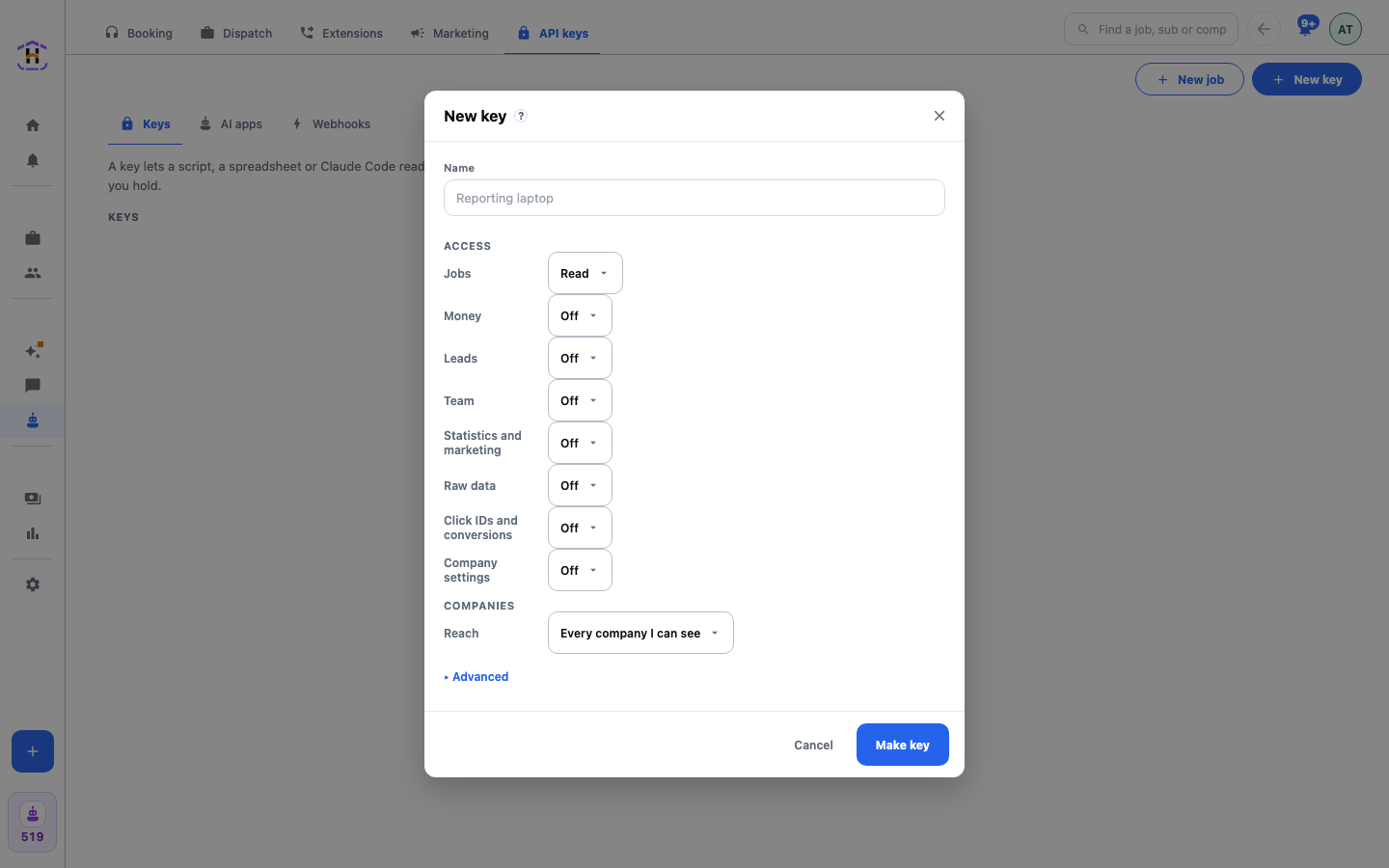
- Open Automations, then API keys. You are on the Keys tab. Press New key.
- Under Name, type what will use it, such as “Claude on my laptop”.
- Under Access, set each area to Off, Read or Read and change. For asking questions, Read is enough.
- Under Companies, choose Every company I can see or Only these.
- If the app should not see who your customers are, turn on Hide personal details.
- Press Make key. Copy the key now. It starts with hh_live_ and is shown only once. The window also shows the MCP address, for Claude Code or Cursor.
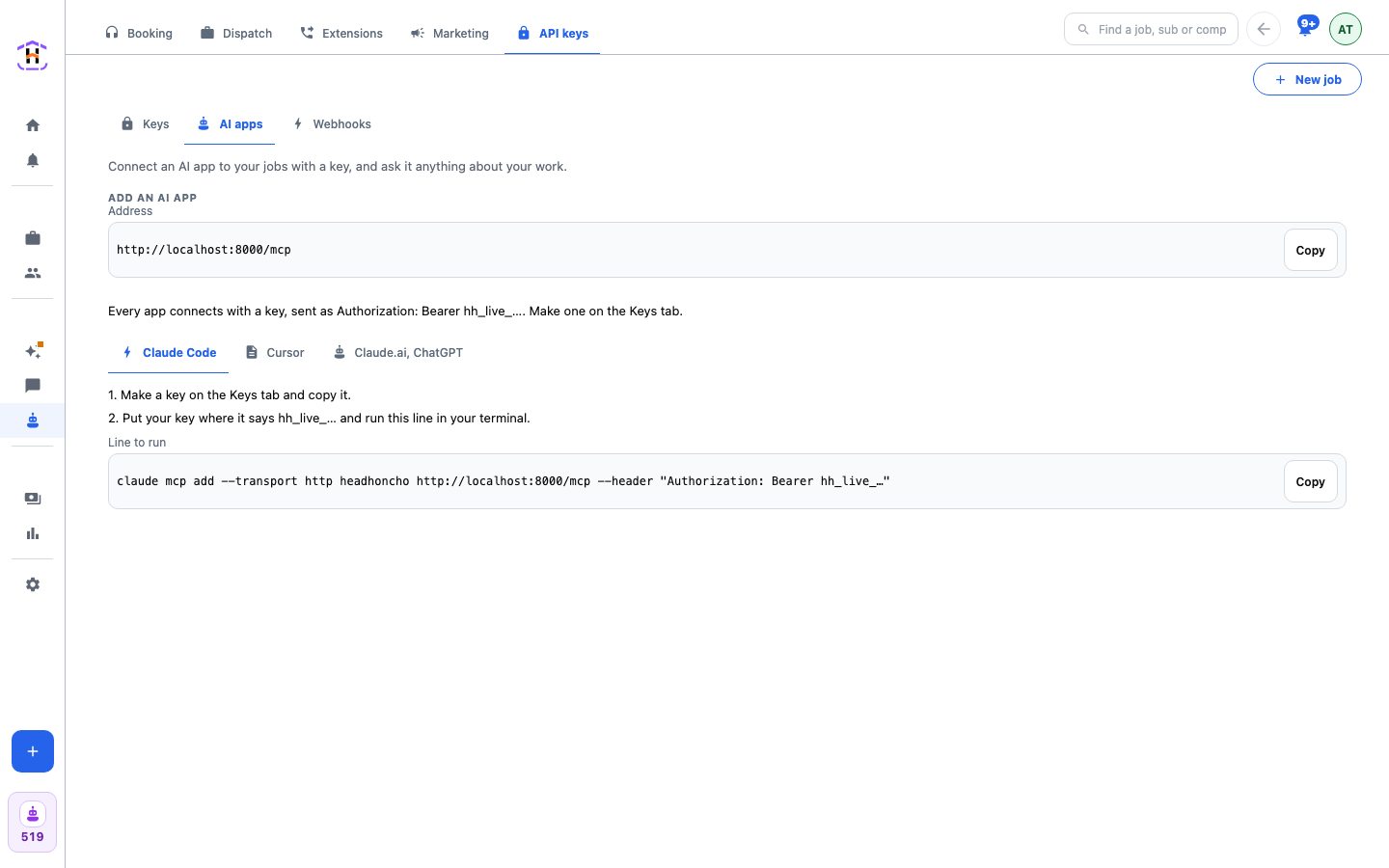
- Open the AI apps tab. Pick your app. For Claude Code, put your key where it says hh_live_ in the line shown and run it in your terminal. For Cursor, paste the shown text into .cursor/mcp.json with your key.
- Ask the app something: “Which jobs were closed this week?”
The Claude Code Line
The line the app shows looks like this. Your own key replaces the dots.
claude mcp add --transport http headhoncho https://api.headhoncho.app/mcp \
--header "Authorization: Bearer hh_live_..."
Every app connects the same way: the address, and the key sent as an Authorization: Bearer header.
Keep the Key Safe
A key only reaches the companies and areas you gave it. Keep it to Read unless you want the app to change jobs. Treat a key like a password. If one leaks, rotate it in the app, or revoke it. A revoked key stops working at once.
How You Know It Worked
- The key appears on the Keys tab.
- The app lists HeadHoncho as a tool source.
- Your question gets an answer built from your real jobs.
If It Fails
| What You See | What To Do |
|---|---|
| You lost the key | It is shown once. Make a new key and revoke the old one. |
| The app says it needs sign-in | You picked a web connector. Use Claude Code, Cursor or another app that sends a header. |
| missing_key or unknown_key | The header is missing, or the key was revoked or mistyped. |
| read_only | The app tried to change something. Set that area to Read and change, or leave it. |
| no_access | The key does not hold that area. Make a key with it. |
| Calls stop | You may be out of credits. See Read Your Credits Bill. |
Everything the API returns is documented on The HeadHoncho API. Setup for each client is on The MCP Server, and the key rules are on API Keys.