How HeadHoncho is put together
This is the HeadHoncho documentation: one page per panel, each saying what it answers, what its numbers are computed from, and what it deliberately does not do.
Everything in HeadHoncho sits on one line of cause and effect: money goes out to an ad platform, a call or a form comes back, somebody does the work, somebody gets paid, and what is left is the profit. Each panel owns one stretch of that line. Nothing is explained twice here — the panel that owns a subject is the page that documents it.
The spine, in plain words
Ad spend arrives on Sources. What it produced — a tracked call, a form fill, a lead — lands on Marketing. The work itself lives on Jobs, one row per job, from the day it is booked to the day it closes. Money resolves on Finance: what came in, what went out, and what the subcontractor is owed. And Marketing is where the three meet, because it is the only board that can put spend, the booked job and the profit after the crew in the same sentence.
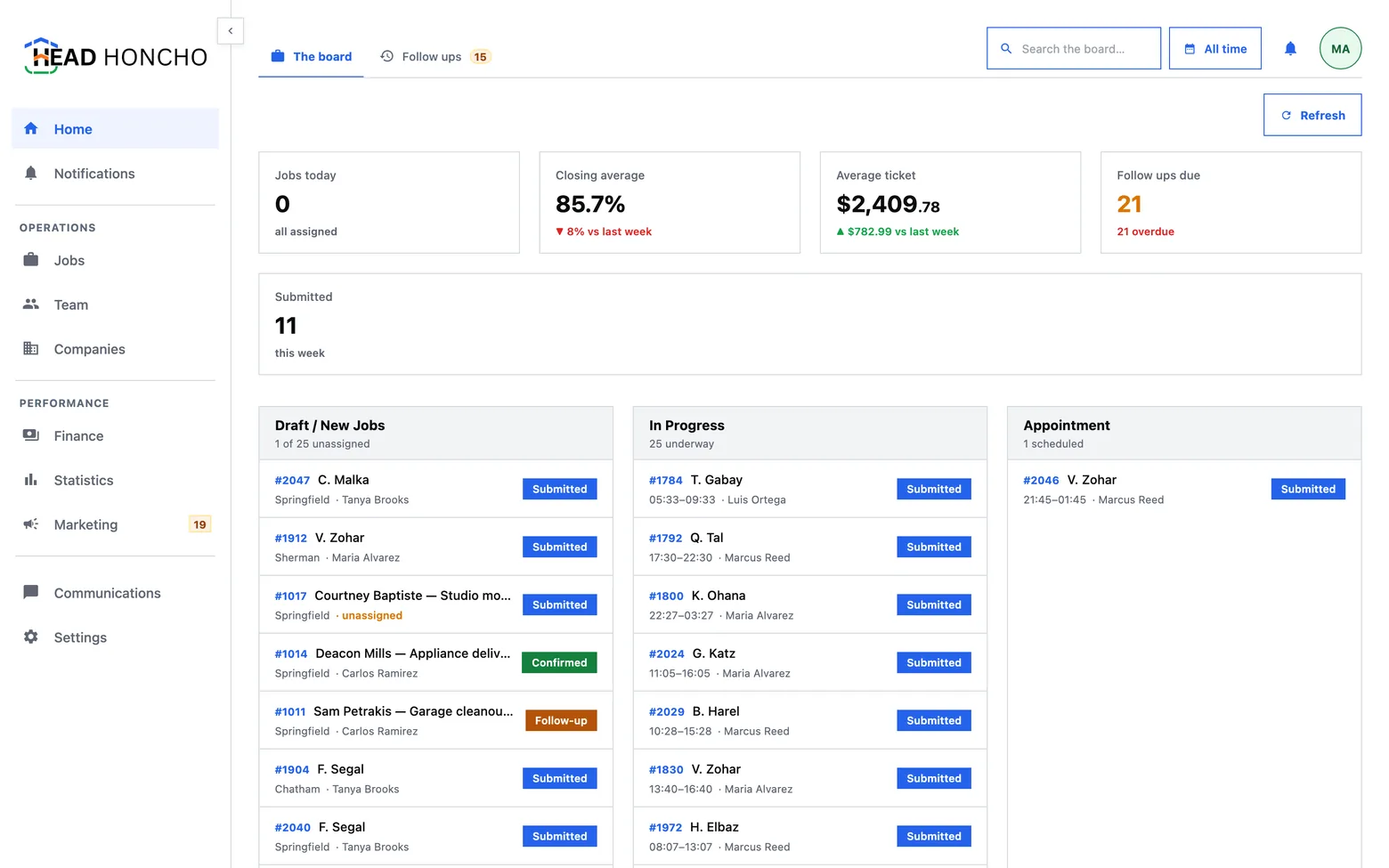
The nine panels
The rail down the left of the app carries nine destinations and Home. Each answers one question, and the question is what decides where a thing lives.
| Panel | The question it answers | Documented at |
|---|---|---|
| Home | What is on my board right now? | Covered by Jobs — it is the same rows, in a lane |
| Companies | Whose numbers am I looking at? | Multiple companies |
| Jobs | Show me everything, narrowed. What is stuck? | The HeadHoncho Jobs panel |
| Team | Who did the work, and what are their terms? | Field service team management |
| Finance | What came in, what went out, who is owed? | Subcontractor payout tracking |
| Statistics | What did the business make? | The job profit dashboard |
| Marketing | Did the ads work, and how do I prove it? | The Insights board |
| Communications | What was said, to whom, about which job? | Business text messaging |
| Settings | Where do I change the words and the rules? | HeadHoncho settings |
| Notifications | What happened while I was away? | Business notification settings |
A screen has one subject. When a panel needs to show something that belongs to another subject, it opens a door to that subject's own place rather than growing a second board inside itself. That is why the Jobs table can assign a worker but the worker's terms are edited on Team, and why a number on the Insights board opens the rows underneath it rather than printing them alongside.
Where a given task lives
Most support questions are really this question. Find the symptom on the left; the page on the right is where the answer is written.
| What you want to do | Where it happens |
|---|---|
| Add a job, or fix a job's address | Jobs — the Jobs panel |
| Rename a stage, or change what a stage looks like | Settings → Job statuses — the job status workflow |
| Find every job nobody has been assigned to | The quick-filter row on Jobs — what needs you |
| Bring last year's jobs in from another system | Import jobs from spreadsheet exports |
| Add a subcontractor and set their cut | Team — the roster |
| See what a job actually made after the sub | Finance and payouts |
| Connect Google Ads, Meta or a call tracker | Connect Google Ads to CRM data |
| Send a client a report they can read | The reports catalogue |
| Check where a number on a chart came from | The marketing raw data board |
| Build a board of your own | Build a custom marketing dashboard |
| Reach your jobs or raw ad data from code, or from an AI app | The HeadHoncho public API and its MCP server |
| Stop being texted about something | Notifications |
| Add a second business under one login | Multiple companies |
| Stop the system texting a crew about something | Home service automation |
| Use it from a phone in the field | The field service mobile app |
| See what this month has used | HeadHoncho plans and usage |
Where the numbers come from
Two decisions run underneath every figure in the product, and knowing them explains most of what you will see.
Nothing is stored as a total. Profit, a technician's balance, a closing rate: each is derived from the rows underneath it every time it is asked for. A stored total drifts the first time a payment is corrected, and then it argues with the screen next to it. Deriving costs a little speed and buys the property that two boards can never disagree.
Every change is an event, in order, with a name on it. A job's History tab is not a feature bolted on top of the job; it is the list of things that were recorded about it, which is what the rest of the product is built from. That is also why a number can always be opened: the rows are the source, and the chart is the summary.
The consequence for a reader: when a figure surprises you, the documented move is to open it rather than to recompute it by hand. Every panel has a path down to its rows — see the Raw data board for the marketing side and Finance for the money.
How to read these pages
This HeadHoncho documentation describes what the product does today. Each page opens with the answer, then the detail, and ends with what that area deliberately does not do — a limit stated on the page is cheaper than the same limit discovered on a Tuesday afternoon.
Two neighbours are worth knowing about. The FAQ answers the questions people ask before they buy — shorter, and about the offer rather than the product. And support is where a person answers; anything here that is wrong, or missing, is worth telling them about.
Two pages are worth reading in order before the rest: Getting started, which walks the sign-up to the first board with real numbers on it, and Job statuses, because the words you choose there decide what every later number counts. If you are evaluating rather than using, how HeadHoncho works is the shorter version of the same story.