Who did the work, and who can see what
Field service team management in HeadHoncho splits in two: workers are the crews who do the jobs, members are the people who can sign in, and one person is often both.
Team is the roster: the technicians and subcontractors jobs are assigned to and paid against. Members are logins, and they live in Settings. Keeping them apart is what lets a crew exist in the product without anybody handing out passwords.
Workers and members
Field service team management here has two separate lists, and the distinction is worth learning once:
- A worker is somebody the work is assigned to and the money is owed to. A worker record is not a login. They live on Team.
- A member is somebody who can sign in to this workspace. They live in Settings → Members.
One person is very often both — an owner who also runs jobs, a technician who also needs to see the board — and seats are unlimited, so making somebody a member costs nothing. What joins the two is an explicit link between the roster record and the login, which the profile drawer offers; it never happens by matching names.
One record, two lists
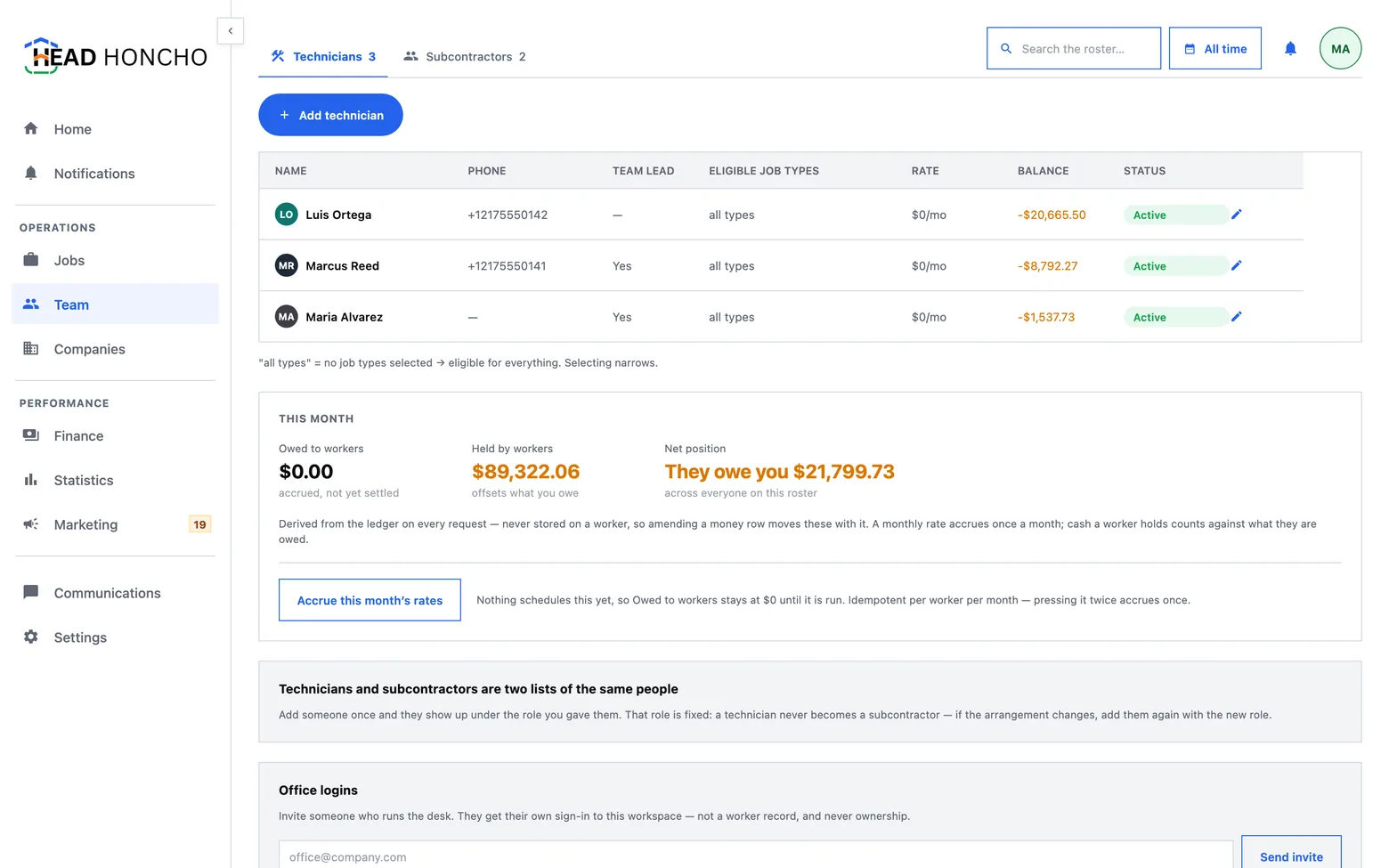
Technicians and subcontractors are one record with a role on it, shown as two lists because the columns that matter differ.
| Technicians | Subcontractors | |
|---|---|---|
| Identity | Name, phone | Company, contact |
| Terms | Team lead, rate, balance | Default cut |
| Shared | Eligible job types, photo, colour | |
| State | Active or ended | Claimed or unclaimed |
The profile drawer labels which record each field lives on — identity on the worker, employment or vendor terms on the role — because that is genuinely two different things and flattening them into one form is how people come to believe a rate is a person's property rather than an agreement.
The role cannot be changed after creation. The role decides which terms record exists, so switching it would orphan one and invent another; the form warns before it creates, and the command refuses the change rather than quietly ignoring it.
Every worker has a colour and it is never empty: until somebody picks one, a stable colour is derived from the record itself, so the same person is the same colour on every screen and every reload. Picking replaces a default rather than introducing one. The colour and the photo are what the Jobs table's Tech/Sub cell draws, which is why they can also be edited straight from that cell.
Who can take which work
A worker can be limited to certain job types, and the rule reads backwards from what people expect: an empty set means eligible for everything, and selecting narrows. Read the other way — every new worker eligible for nothing — a fresh workspace would look broken rather than unconfigured. The roster prints the words all types rather than an empty cell, because a blank there reads as “none”, which is the opposite of the truth.
Rates, balances and statements
Two words on this panel mean two different things, and the product keeps them apart deliberately:
- A rate is a standing agreement — a monthly figure, or a percentage cut. No money has moved.
- A balance is an accrued position: what has been earned, less what has been paid, plus what they are holding on your behalf.
Every balance is summed from live money rows on every request. Nothing is stored, because a stored balance drifts the moment a payment is amended — and money rows here are editable in place precisely so they can be.
A balance is a position; a statement is a period. The balance card is never windowed by a date range, because “owed since the beginning” is the only reading that can be settled against. The statement beside it carries a date range and names the dates it searched, even when it found nothing.
A statement leads with one signed figure in words as well as digits — green when you pay the worker, red when the worker owes you. A signed number on its own does not say who owes whom, so the direction is decided in one place and every surface that prints a balance imports it. The same band leads the technician report on Finance.
A technician's monthly rate posts to the ledger once a month, and nothing schedules it. The card carries the action that fills it: one button, per worker per month, and pressing it twice in the same month posts once. That is a visible gap rather than a silent zero — a card that printed zero forever, month after month, would be worse.
Inviting people who sign in
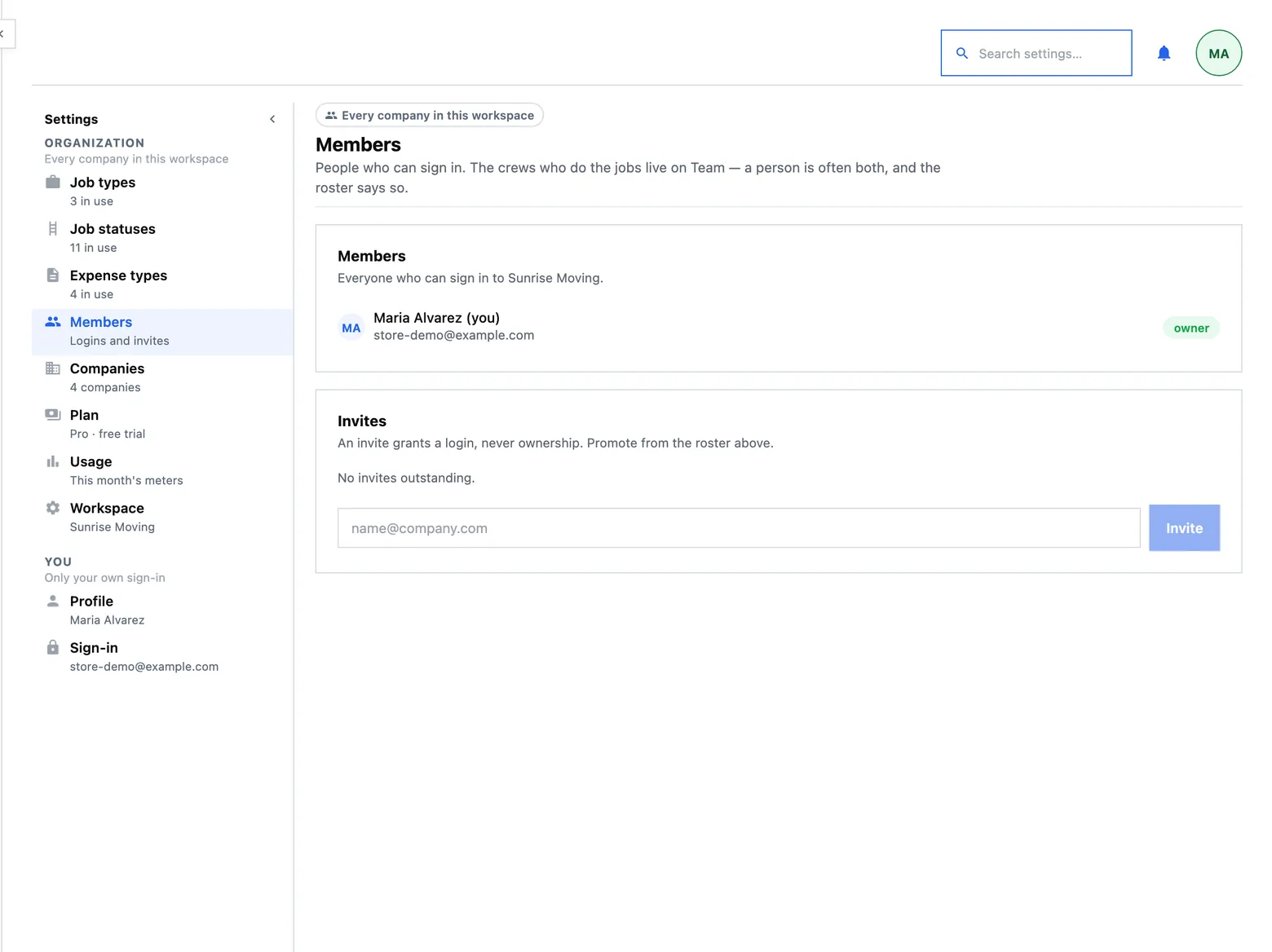
There are two roles, and only two: owner and member.
| Capability | Owner | Member |
|---|---|---|
| Jobs, money, reports, dashboards, messaging | Yes | Yes |
| Invite and remove members | Yes | No |
| Change somebody's role | Yes | No |
| Close the workspace | Yes | No |
An invite is addressed to an email rather than to an account, because the person joining on day one usually does not have one yet. It carries a code, expires after a week, and can be resent or revoked. A workspace can never be left with no owner: the last one cannot be removed or demoted, and the refusal says so.
What a worker cannot do
This section exists because naming what a product deliberately does not do is cheaper than letting somebody discover it.
- There is no worker-side view of a person's own earnings. A crew member you invite as a member sees the workspace, like anybody else who signs in — what does not exist is a screen that shows one person only their own money and lets them claim the record it belongs to. The commands for a worker to file such a claim, and for a colleague to vouch for it, both exist and are deliberately given no screen: an “file it on their behalf” button on the office side would let one person manufacture a claim to somebody else's money. They are recorded as unreachable on purpose, not forgotten.
- Nothing invites a worker to claim a record. There is no send-a-claim-invite path.
- No number of vouches confirms a claim. A person presses the button. Vouches are evidence shown to a reviewer, never a tally that decides.
- The owner-side alternative is a link, not a claim. Where a worker record and an existing member login are the same person, the drawer lists candidate logins and links them directly — which is auditable, and does not fabricate a claim in anybody's name.
- Hired and ended dates are read-only in the drawer.
Deactivating and deleting
Deactivating keeps the record and takes the person out of circulation: they stop being assignable and their dispatch destination stops receiving tickets. That last part is not cosmetic — a deactivated subcontractor whose group still received tickets would keep being sent work.
Deleting is available and it says what it will do first, from the facts on screen: how many jobs lose their assignment, what balance is written off and in which direction, that the dispatch destination stops receiving tickets, and that their text-message consent record is kept — with their name taken off it — because the messaging rules require keeping it. The confirm offers Deactivate instead as the filled button, because that is what most people pressing Delete actually want.
Money that has already moved keeps its shape: a job's payments and expenses survive and simply lose the link to the person. The one refusal is erasing your own record while signed in as it.