Bringing history in without losing the money
You can import jobs from spreadsheet exports and from Uleadz. The importer reads the file, shows you what it made of every row, and writes nothing until you say commit.
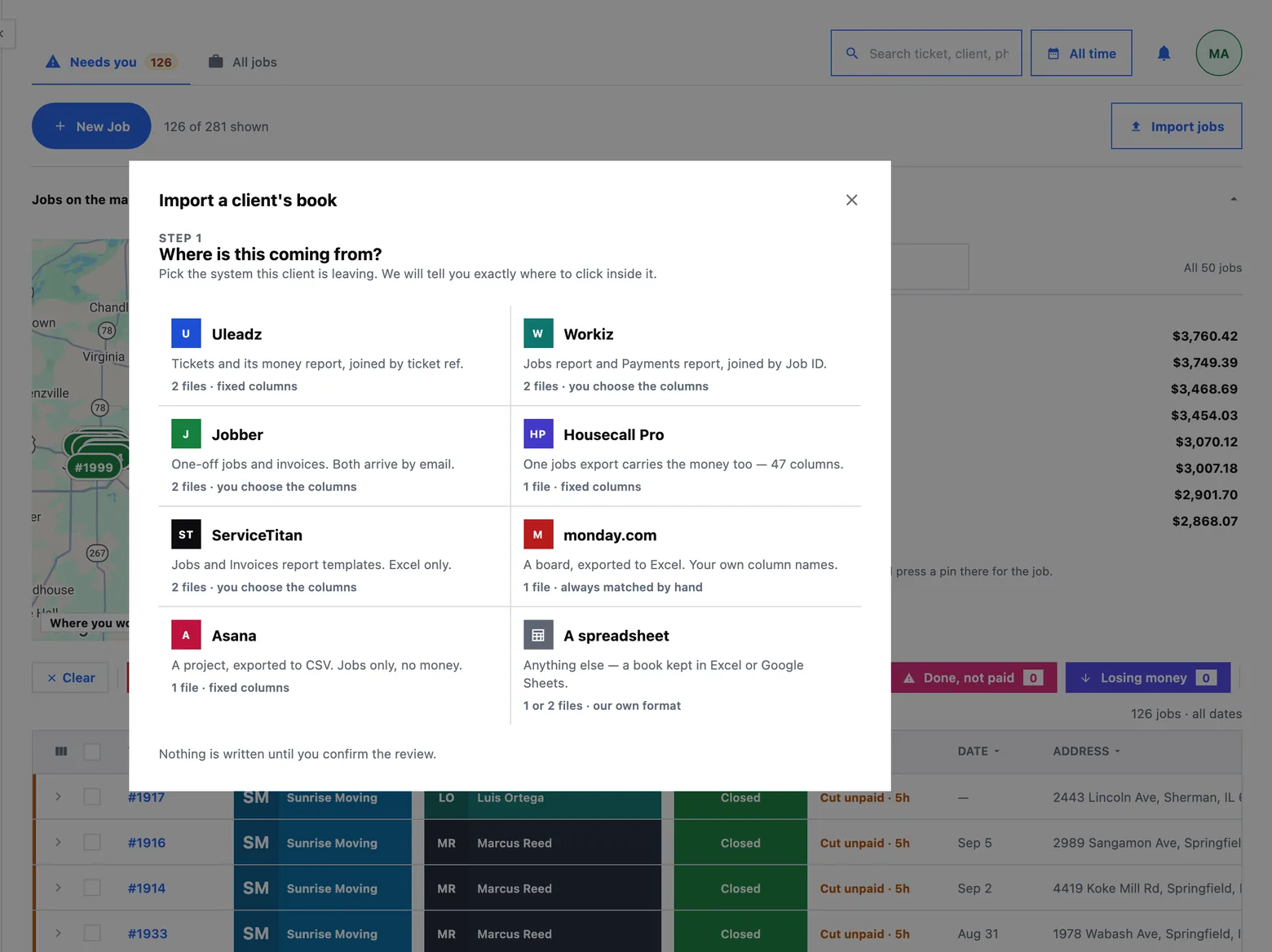
The importer asks which system you are leaving before it asks for a file, because that is the only way it can tell you where inside that system to click. Then it shows you what it read, lets you correct it, and writes nothing until you press a button that says exactly what it will write.
The three steps
To import jobs from spreadsheet exports or from another field-service system, the door is the same one every time: system, then files, then match, then review. It opens from the Jobs panel's tool row and from Finance, and where it opens from decides what it is preset to bring in.
The middle step is skipped entirely when every column matched with high confidence — which is most second imports, because your answers are remembered per system.
 1
1
- Press the system the work is leaving. Each tile says how many files it wants and whether the columns are already known.
Which system, and which files
The picker offers the systems agencies actually move clients off, and a spreadsheet tile for everyone else. Choosing one produces a recipe: named steps, in that vendor's own words, saying where the export lives and how it arrives.
The number of files is a fact about the vendor rather than about you. Some systems keep the work and the money in one export; most keep them in two, because their money lives in a separate report. The recipe says which you are dealing with and how many steps to expect, and it also says what that system cannot give us — a vendor that exports no technician cut anywhere is named on the recipe card, not discovered at the review.
The picker is a reading aid, never a gate. Every file is still probed on its own, so if you name one system and upload another's export, the screen tells you what the file actually looks like and offers to switch. An organization that has imported once sees the picker collapse to a line and opens straight on its recipe.
The spreadsheet tile opens on the columns we look for, field by field, with the required ones marked — and hands you two files that already have those columns in them, with example rows filled in. The person holding the data is very often not the person at this screen, so the template is something you can send on.
What the columns must contain
Two files, two short lists. Required means the column has to be present; it does not mean every cell has to be filled.
| The jobs file | The money file | |
|---|---|---|
| Required | Ref, Created date | Ref, Date, Total |
| Recommended | Phone, Job source, Status, Client name, Address | Payments, Technician, Cut rate % |
| Optional | Scheduled date, Closed date, Job type, Technician, Notes | Cut amount, Parts, Fees, Client name, Address, Status |
Each line says what leaving it out costs, in the product's terms rather than in validation language. No phone means the job can never be matched to the call that produced it. No job source means the job appears in no spend-to-profit answer at all. No cut rate means the job lands assigned with no cut posted.
A required column must be present, because a file with no reference cannot be safely re-imported and a file with no date would put a year of history on today. A blank cell in that column is a gap, never a refusal: the row still lands, dashed and counted. Nothing is refused for what it lacks — only for what it contradicts.
The template's example rows do not have to be deleted; paste underneath and upload, and anything still marked as an example is skipped and counted on the review as skipped rather than silently dropped. The examples are also deliberately imperfect — one row has no client name and no address, so the file teaches the rules faster than the table does.
Matching the columns
The match screen puts your file's real header on the left, with three real values under each column, and our fields on the right as menus. Four rules govern it:
- A guess reads as a guess. Every row says how it matched — by name, from the values, or remembered from your last import. A match on evidence and a match on a hunch must never look the same.
- Evidence is the values, not the header. A column of phone numbers is a phone whatever somebody called it; a column that is unique on every row is the reference. This is what makes an arbitrary board from a project tool importable at all.
- Unanswered questions sit at the top, in amber, and are not errors. Nothing else is highlighted.
- The answers are remembered per organization and system, and offered back next time.
Three kinds of column need more than a menu, and each becomes one question you can see rather than a rule buried in a parser: a packed cell (a payment history crammed into one column) shows its first rows already split; four address columns collapse into one row rather than four; and a column of status words gets one dropdown per distinct word, minting a status for a word your workspace does not have yet.
One control on this screen decides everything downstream: Import as — jobs and money, jobs only, or money only because the jobs are already here. Jobs opens on the first, Finance opens on the last.
The review, before anything is written
Nothing is written until you commit. The review is a tally that never folds: jobs to create, jobs already here, jobs with money, jobs that need a decision, jobs that need an address, jobs missing something, and rows refused. The button then says what it will write — Import 271 jobs and 243 money rows, for example — rather than saying Import.
Three lines on the review are worth reading every time:
- Source coverage. How many of the jobs carry a job source, and how many do not. The ones that do not can never appear in a spend-to-profit answer, so the number leads rather than trails.
- The range guard. If the jobs file ends on one date and the money file on a later one, the review says so and says how many money rows will build their own job — with a door back to step one. Two exports taken on different days is the commonest way an import quietly goes wrong.
- What this export could not carry, folded, seeded from the recipe.
Pressing the button twice is safe. Every row is written through one command, keyed on its reference, so a re-import updates rather than duplicates and a bad row refuses on its own without taking the file down with it.
Two files, reconciled
Where a system keeps its tickets and its money in separate reports, the two are read together and reconciled — and the split is derived, never copied. A money row whose reference matches a job here lands its payments, its parts and its rate on that job; the cut is then computed from those facts by the same code that computes every other cut, and the file's own figure is compared with it rather than trusted. Where the two disagree, the review says so.
A money row that matches nothing builds its own job, because the money file carries enough to do it honestly: client, address, date, source, technician, type and total. A row that has already been imported is skipped.
Imported history lands closed and is never dispatched. No automation wakes, no subcontractor is texted, and nobody's phone rings because you brought last year in on a Tuesday afternoon.
What happens to rows it cannot place
- A job with no address lands as a draft wearing an amber Needs address. It is a gap to fill, not a row to lose — fix it in the address cell on the Jobs panel.
- A row that contradicts itself — a total that is not a number, a date that is not a date — is refused on its own and named on the review with its reference.
- A status word your workspace has never used becomes a status, if you say so on the match screen. See job statuses.
- A technician the file names is matched to your roster; see team and workers for how the terms behind a cut are stored.
If an import ever goes badly wrong, the recovery is honest rather than heroic: erasing the imported jobs and importing the file again lands on the same figures to the cent, because nothing about the import depends on how many times it has run.