Every job, and what each one is waiting on
The HeadHoncho Jobs panel is one table over every job you have, with four ways to narrow it and one column that says what each row is waiting on.
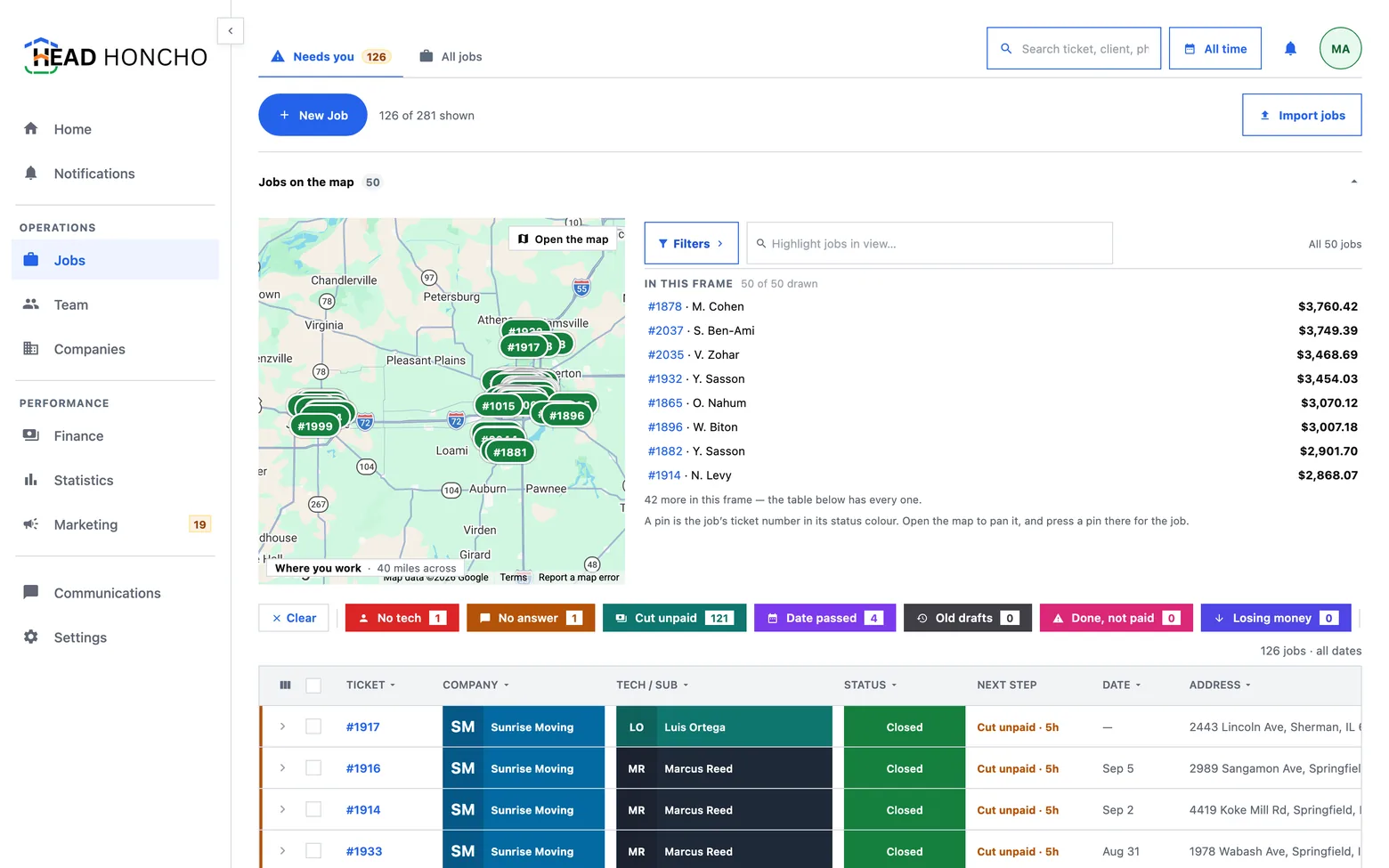
Jobs opens on two boards. Needs you is the worklist: every job something is stuck on, with the reason named. All jobs is the whole book. Both draw the same table and the same row of saved filters; what differs is only which filters are pressed when you arrive.
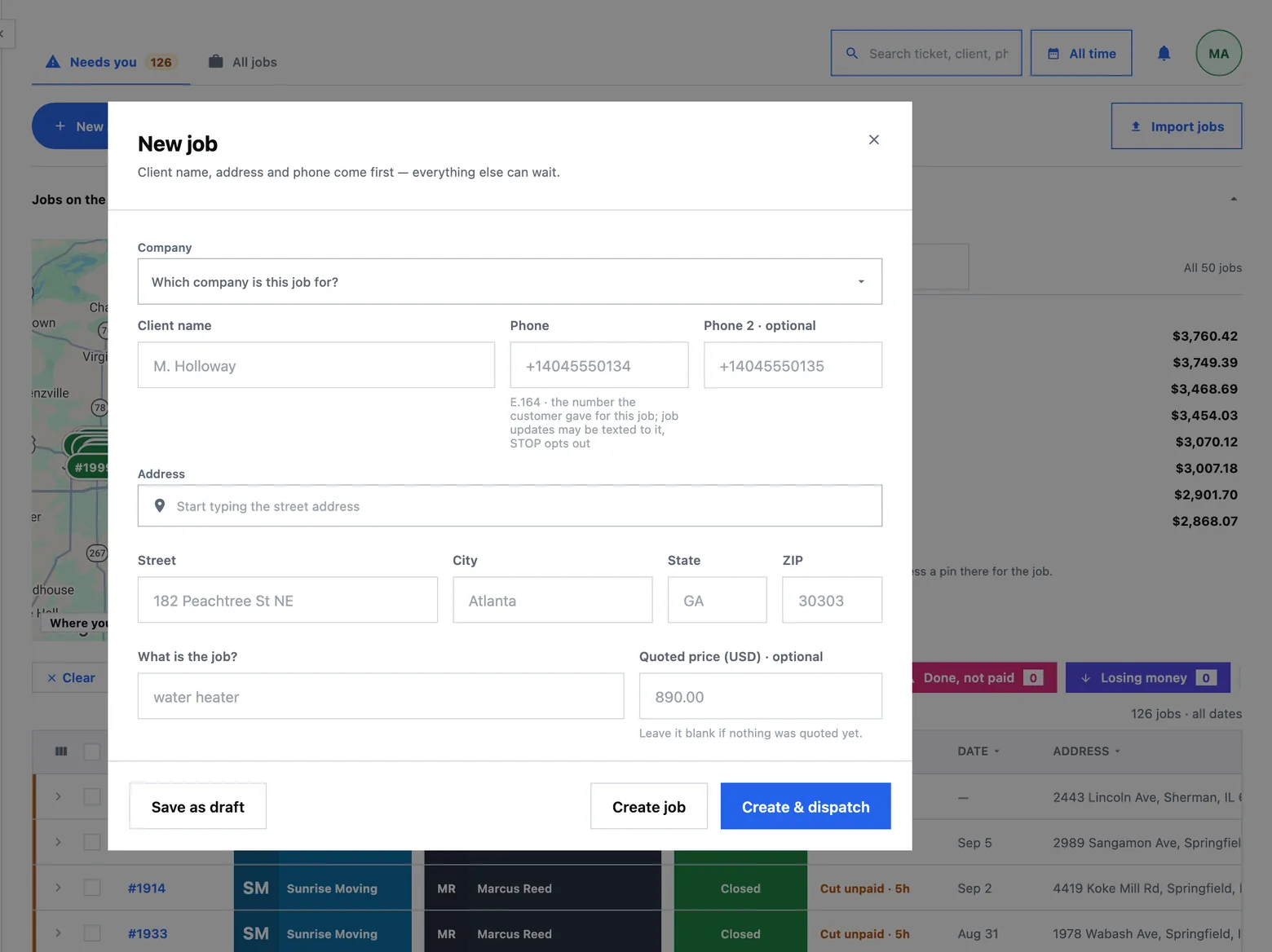
What a job holds
The HeadHoncho Jobs panel opens on nine columns — Ticket, Tech/Sub, Status, Next step, Date, Address, Name, Phone and Job source — and those nine are a default, not the table. Columns, in the table's own frame, opens a grouped catalogue of twenty-six fields: the job, the people, where, when, and the money. Ticking one appends it to your arrangement rather than slotting it into catalogue order, so a column you add never disturbs an order you made by hand. Drag a heading sideways to move it. The arrangement is remembered per company.
The money group is the half a job list usually cannot show at all: quoted price, money collected, parts, fees, the cut and the net are on the row, so you can sort the table by what a job actually made.
The subtitle above the table reads something like “142 jobs · 18 shown”. Two numbers, because how many you have and how many survived the filters are different facts and neither should have to be inferred from the other.
 1
2
1
2
- The two tabs. Needs you is the board filtered to jobs with a reason on them; All jobs is everything.
- Import jobs — bringing your history across from another system, covered in importing your existing jobs.
Reading and editing the table
Three cells are editable where they stand, and each one runs the same command the job's own page runs — there is one write path and several mouths, so the table can never mean something different from the record.
- Tech/Sub fills its cell: a square with the worker's photo or initials, then a band in that worker's own colour with their name. Unassigned is the whole cell washed amber with one button in it, Assign Technician. The menu stays open after a choice, because assigning a tech and a sub in one visit is the normal case, and it ends in two doors — a pencil beside anyone opens their Team drawer right here, and Add a new creates a worker without leaving the table.
- Status fills its cell in the status's own colour. The menu lists every status your workspace has, and ends in Add a new — name, colour, text colour, and a preview that is the block the table will draw.
- Address edits on a double-click, because there is no fixed set of options to open a menu over. Enter commits, Escape discards. An imported job with no address wears an amber Needs address until it is filled.
One press on a row selects it. A second press within a third of a second opens the job at its own address, and the selection you had built up is left standing. The ticket number is also a plain link to the job, so the gesture has an honest twin for anyone who was never told about the double press.
A heading press opens that column's menu: sort ascending, sort descending, and that column's own filter, writing into the same filter state the panel's other controls read. Seven of the eight default columns sort; Tech/Sub does not, because a job can carry several people and ordering by whichever happens to be first is not a rule anyone could state.
What “needs you” means
A job needs you when something is stuck and only a person can move it. It is not a flag anybody sets and not a badge that ages: each reason is a condition evaluated in the database at the moment you ask, which is what lets the same definition narrow the table, colour the row and count the chip from one clock.
| Reason | What it means | The one thing that clears it |
|---|---|---|
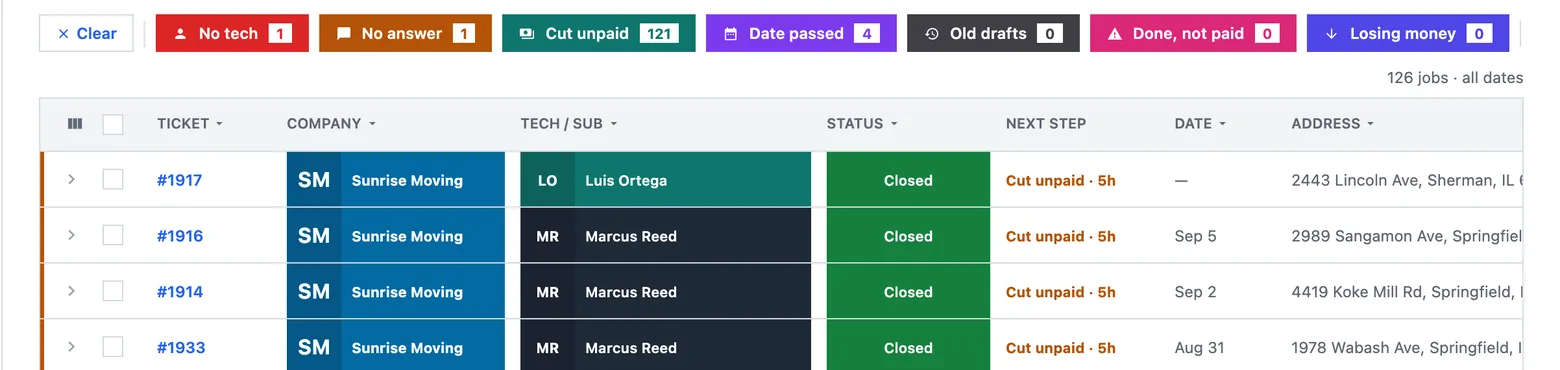
| No tech | Nobody is assigned, the job is past intake, and the short grace period has run out | Assign a technician |
| No answer | The wait on this rung has been spent without a reply | Chase the sub |
| Cut unpaid | The job closed and the window for posting the worker's cut passed with nothing posted | Post the cut |
| Date passed | The scheduled date went by and the job did not move | Reschedule |
| Held question | A message arrived that could not be tied to a job at all | Answer it in the Inbox |
The entry test for a reason is that last column. No button, no reason — a reason with no verb beside it is a complaint, and a worklist of complaints is decoration. For the same reason, an attention reason cannot be dismissed. You clear it by doing the thing. If one of them fires too often, the wait on that rung is wrong and the fix belongs in the ladder, where it is fixed for everyone rather than hidden for one person.
Date passed is defined but off the default set. In a workspace that does not really schedule, the scheduled date is whatever the importer wrote, and the reason would fire on nearly every row — an alarm that is always on is furniture. It is still filterable and countable by name.
A row that needs somebody carries two marks, and they answer two different questions. A three-pixel rail on the leading edge says how bad it is: red for danger, amber for a warning. A block in the Next step column says what to do about it, in the same grammar the status block uses, because that column already answers what do I do with this row. The status colour is left alone: a job can be closed, green, and still need you because the cut was never posted, and a single colour cannot carry both facts.
 1
1
- Press a reason and the table keeps only the jobs it names. Press it again, or Clear, and the whole list is back.
The four ways to narrow the list
Saved filters are the row of coloured buttons above the table. Each is a named predicate you press — the four reasons above come in the box, and so do Old drafts (a draft created more than fourteen days ago), Done, not paid (closed with nothing collected) and Losing money (profit below zero). Every one of them is renameable, recolourable and archivable; where a filter came from is not your problem. The builder underneath the row composes conditions in words — profit is more than 500, created is older than 14 days — and prints Matches N jobs right now while you write it. Conditions inside one filter must all hold; pressing two filters shows you jobs matching either.
The filter bubble holds the five list fields — Status, Tech/Sub, Source, Job type, Company — as multi-select lists with a search inside each. Three rules govern it, and every one of them has a failure mode that looks like working software: values within one field are or (a job cannot be two statuses at once, so and would always return nothing), fields combine with and (or a narrower filter would silently show more), and an empty field means any, never none. Counts beside each value ignore that field's own selection, so you can always widen a search — the behaviour every spreadsheet filter has. Nothing narrows until you press Apply.
The date range is the panel's window, with presets and a from/to calendar, and a switch for whether you mean the day a job was scheduled or the day it was created.
The map narrows too — see below.
Pressing a reason suspends the date range you arrived with, and the row says all dates while it holds. A job nobody is assigned to is stuck whether it was booked yesterday or in March, and a remembered last 30 days would hide the oldest stuck jobs from the one board that exists to find them. It is suspended, never cleared: unpress the last reason and your window comes back exactly as it was. A range you pick by hand while reasons are pressed is honoured — that one is a deliberate instruction, not a memory.
The map
Every job with an address carries a point, so the panel can draw the work on a map above the table. The map and the table are one answer: what narrows one narrows the other. The controls fold into a single lens in the card's header that prints every choice currently in force — the pin style by name, each band by its actual figures — so the controls collapse but the state never does.
The map on the card is a preview. Pressing it opens a window-filling map with the list on one side and the job you picked on the other. Markers print a value and a count rather than a letter, because a marker reading, for example, $4,180 · 6 is worth stopping on and a marker reading B is not.
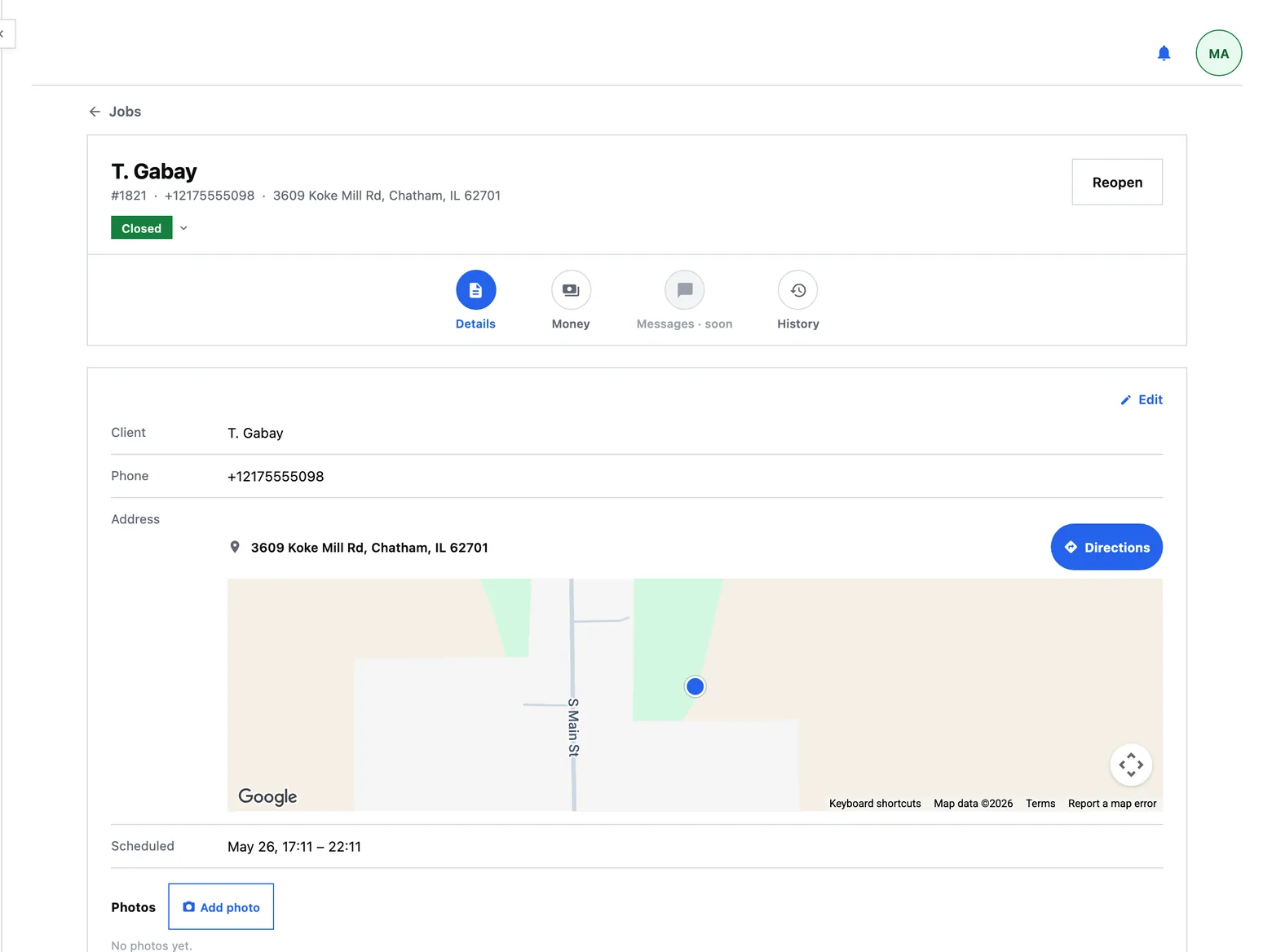
Two honest details about the geography. The stored point is accurate to the street range, which is good enough to say which neighbourhood earns money and not good enough to drive a truck to — so Directions routes on the address text, not on the stored point, and lands on the driveway. And an area here is a named place at the zoom you are looking at: a neighbourhood close in, a borough one step out, a metro at the top. Never a compass quarter, and never a grid.
A job's money, as arithmetic
The arrow at the left edge of a row opens that job's economics under it, and what it opens is the calculation, not the answer. A tile reading, for example, Profit $798.63 asks to be trusted; somebody arriving from another system cannot check an assertion, only agree or disagree with it. So the panel prints the working: what the job made (money in, less parts, whoever paid them), then one block per claimant showing its rate, its share, its own outlay handed back and what it takes home — and then the check, as a sentence: everyone's take-home adds back to the money that came in, exactly.
It cross-foots exactly rather than within a tolerance because the company's share is a residual — whatever the other claimants leave. Two claimants at fifty per cent each want to round the same half-cent down; deriving the last share instead of computing it puts the odd cent on the house. A tolerance would pass the exact job this is built to catch. The full model is on Finance and payouts.
Many rows can be open at once, because comparing two jobs' economics side by side is the reason anyone opens one.
Acting on several jobs at once
Selecting rows raises a bar at the bottom of the screen, docked to the window so it never scrolls away, and it names its subject — “1 job selected · #1042 · Alpha Cohen”. An action bar without its object is how somebody acts on the wrong row. The actions cluster in three groups: closing, the record, the crew.
Four of them act on the whole selection and print the count they will move. Three are single by nature and say so: opening a job is a navigation, logging cash records one amount against one ticket, and a conversation is a thread with one crew. Nothing is hidden when it cannot run — a disabled button prints its reason underneath (“Already canceled”, “No one assigned yet”), because a greyed button that explains itself teaches the rule while a missing one reads as a bug.
Every bulk action reports back per job rather than saying “done”: “18 canceled · 2 already canceled · 1 refused: #1042 has money on the books”, with the dialog staying open so you can read the refusals against their ticket numbers.
Canceling asks why, as free text, and the reason is kept on the job — so cancellations can be reported by cause and not only by count. Revive the job and the verdict clears with it.
Erasing a job is a different act from canceling one, and the confirm says so before it destroys anything. It reads the consequences first: how much in payments the erasure deletes, how much in posted cuts is voided with it, how many matched ad conversions stop exporting. The safe path — mark it canceled instead — is the confirm's primary button, because the cheapest moment to save a cancellation statistic is the moment somebody is about to throw it away. What survives an erasure is the record that it happened, and the money's shape at the time; what does not survive is the job.
What this panel does not do
- There is no export button on Jobs. Exporting your whole book is at the foot of Settings → Company, as Export jobs as CSV. The one on the panel would have promised the view you were looking at; the one in Settings gives you the whole company, which is a different promise and gets a different name.
- Below the table's minimum width the column menu is out of reach. On a phone the panel's own filters are the door, and the columns scroll sideways.
- A reason cannot be snoozed or dismissed. See above — the pressure valve is the rung's wait, not a dismiss button.
- A job going quiet does not page you. Time passing is not an event, so a job crossing its wait shows up the moment somebody looks at the board, and does not arrive as a notification. Notifications covers what does.
If you are still deciding whether to move your jobs here at all, the shorter version of this page is the job tracker on the main site.