How to Connect CallRail
Result: every call that CallRail tracks lands in HeadHoncho, and each job gets its source from the first call its customer made. Time: about two minutes.
What You Need First
- A CallRail account.
- A CallRail login for a user who can see the whole account. A limited user returns a partial account with no error, and calls silently go missing.
- The API key from CallRail: Settings, then Integrations, then API.
Connect CallRail in Four Steps
- Open Statistics, then the Sources tab. Find the CallRail row and press Connect CallRail.
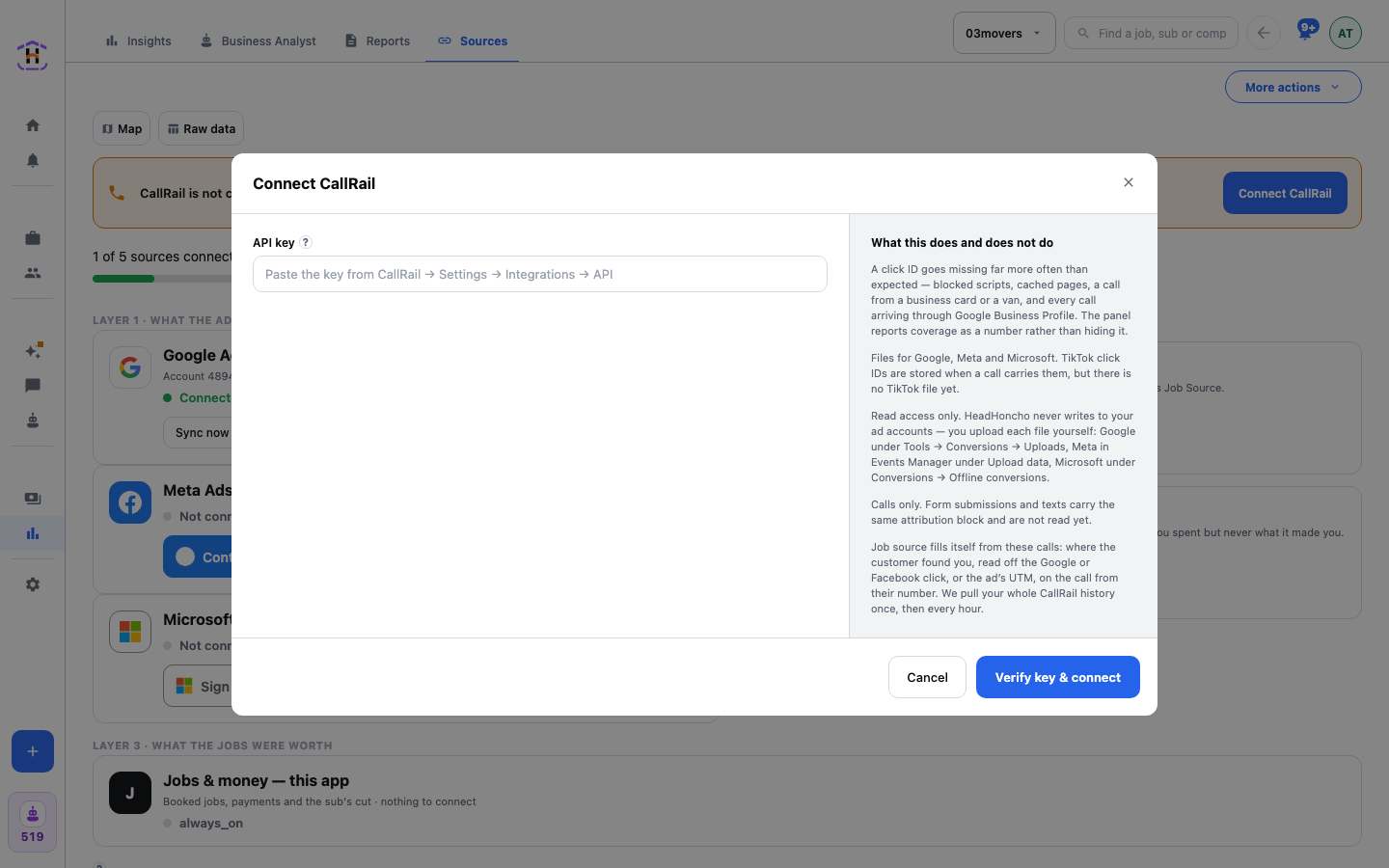
- Paste the key into API key. The window shows only this field at first. If your key reaches more than one CallRail account, an Account ID field then appears and asks you for the one this company uses.
- Press Verify key & connect.
- Optional, once it is connected: open the CallRail window again and open Tracking numbers and webhook. List the CallRail numbers your agency put on its Google Ads, one per line, under Your agency's tracking numbers, and add the Webhook signing key if you want each call the moment it happens instead of hourly.
What Happens Next
We pull your whole CallRail history once, then every hour. Each job's source fills itself from the call: where the customer found you, read off the Google or Facebook click, or the ad's tracking tags, on the call from their phone number. A call matches a job by that phone number. A job with no phone number can never be matched to a call.
Why It Matters
A job without a source is invisible to your ad numbers. When the call tracker tells HeadHoncho who called, and the job has the same phone number, the job knows where it came from. Then Statistics can show what the ads actually produced: booked jobs, and what was left after the cut.
What It Does Not Do
- Some click IDs go missing: blocked scripts, cached pages, a call from a business card or a van, and every call that arrives through Google Business Profile. The Statistics panel shows coverage as a number instead of hiding it.
- It reads calls only. Form submissions and texts are not read yet.
- It has read access only. HeadHoncho never writes to your ad accounts. You upload the conversion files yourself.
How You Know It Worked
- The CallRail row says it is connected, with the last four characters of the key.
- Jobs start showing a source taken from their call.
- If something blocks it, a box titled Connected, but not working yet lists the reasons.
If It Fails
| What You See | What To Do |
|---|---|
| Paste the key from CallRail. | The key box was empty. |
| The key is refused | Make a new key in CallRail as a user who can see the whole account. |
| Calls seem to be missing | The key was made by a limited user. Make a new one, paste it, and press the button again. |
| Nothing changed. Paste a new key, or change the numbers below. | You pressed save without changing anything. |
To disconnect, press the disconnect button on the CallRail row and confirm Disconnect CallRail? The Google side of the same loop is in Connect Google Ads.