How to Connect Your Google Ads Account
To connect your Google Ads account, open Statistics, then Sources, press Sign in with Google, and choose your ad account. Spend then flows in daily.
The result: your Google Ads spend flows into HeadHoncho every day, so the Cost per lead figure can appear. Time: about five minutes. You need to be able to sign in to the Google account that can open your ads.
What You Need First
- A login that can open your Google Ads account.
- Auto-tagging switched on in Google Ads. HeadHoncho checks this for you when you sign in.
- A few minutes where nobody will interrupt you. The sign-in opens a Google window, and closing it early is the most common reason a first try does not finish.
Connect Google Ads Account: The Steps
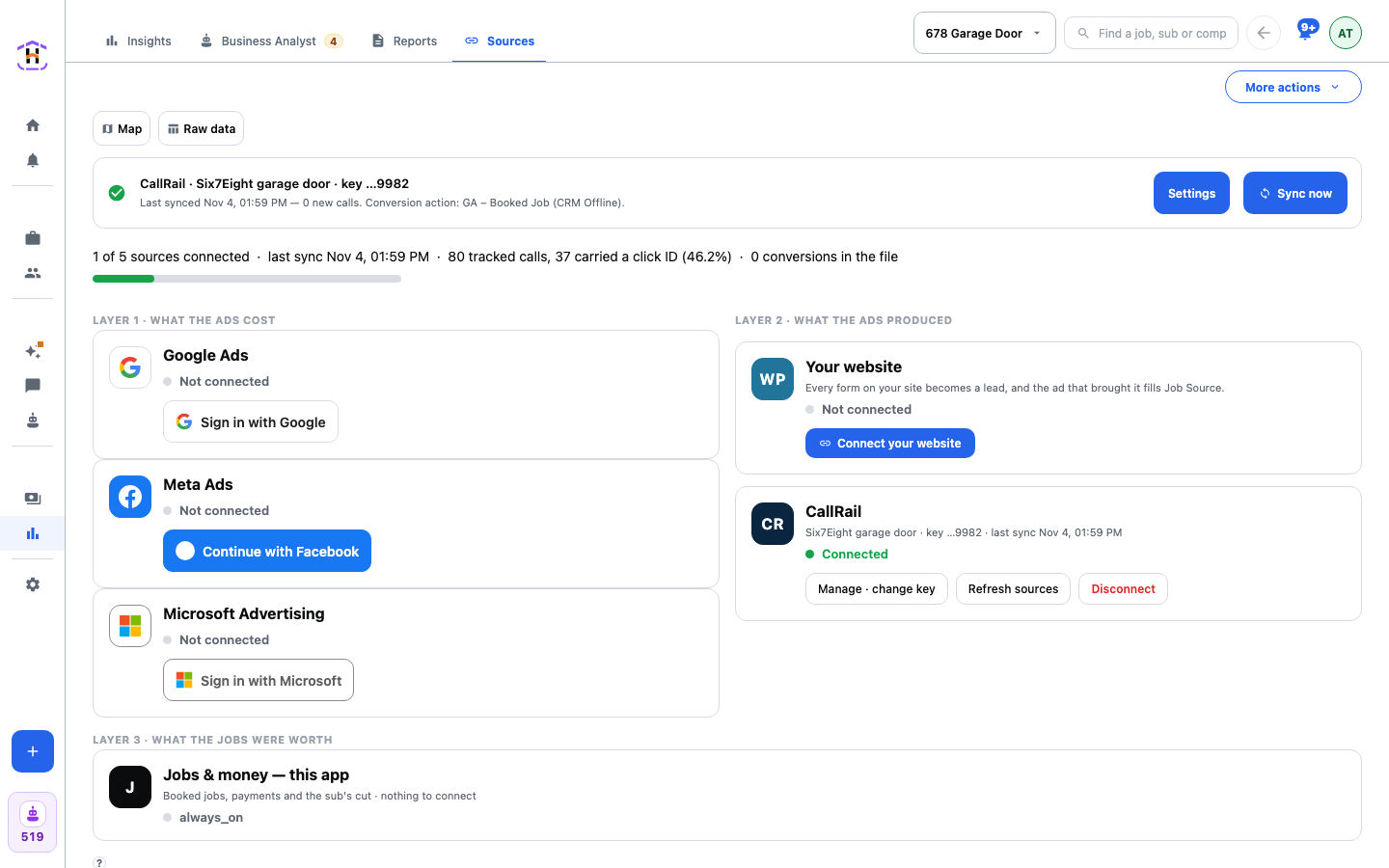
- Open Statistics, then Sources. You see one card per source. Find the Google Ads card.
- Press Sign in with Google. The button opens Google's own sign-in. Pick the login that can open your ads.
- Read the permissions Google lists, and allow them. We ask to read your campaigns, ad groups, keywords and daily cost, clicks and conversions. We do not edit campaigns, ads, budgets or keywords.
- Answer "Which ad account?" Press Choose next to the account that runs your ads. HeadHoncho never picks for you, even if there is only one.
- Read the card. It should say Connected, with the account name and number.
If you run ads for more than one shop, each shop is its own company in HeadHoncho. Connect each company on its own card, with the login that can open that shop's account.
How You Know It Worked
- The card says Connected and shows when it last synced. Press Sync now if it says nothing synced yet.
- Open Statistics. The Cost per lead figure shows a dollar amount, and its note under the number reads like "$1,240.00 Google Ads spend ÷ 12 Google Ads jobs" (an example). If no job has Google Ads as its source yet, the note says so, and the figure stays a dash.
- Add Ad spend from Add a question under Actions. It should match what Google Ads shows for the same dates.
If It Fails
- "That connection did not complete. Press Connect again." The sign-in was closed early. Press the button and finish it.
- The card says Needs a setting changed. The card prints Google's sentence. The usual one is that auto-tagging is off. In Google Ads, open Settings, then Account settings, then Auto-tagging, and turn it on. Without it, clicks carry no click ID and calls arrive with nothing to match on.
- "No accounts this sign-in can reach." You signed in with a login that cannot open the ads. Press Reconnect and use the right login.
- Nothing shows, but it says Connected. You may have chosen the wrong account. Press Disconnect, connect again and choose carefully. Disconnect keeps the spend already recorded.
- Reconnect needed. The sign-in lapsed. Press Reconnect.
Next
Read the full list of statuses on the Sources docs page. When spend is flowing, read your numbers with How to Read Your First Report. To teach Google which clicks booked, see importing offline conversions.