How to Listen to Your Recorded Calls
Result: your calls are recorded, and you can play any one of them from your phone or computer. Time: about two minutes, plus one call.
What You Need First
- An extension number that is turned on. See the setup tutorial.
- A minute to read the law on recording. See Can You Record Customer Calls. It is not legal advice.
- Permission to change settings in your workspace. If the switch is greyed out, ask the owner.
Recording is one switch for the whole workspace. It records the calls that go through your extension numbers. It does not record calls on your own cell phone.
Listen to Recorded Calls in Four Steps
- Open Automations, then Extensions, then the Calls tab.
- Above the list, turn on the Record calls switch. A message says Recording is on. Under the switch it reminds you: both sides hear “This call is recorded.”
- Make a call through the number. Have a tech call it and key a job, or call it yourself.
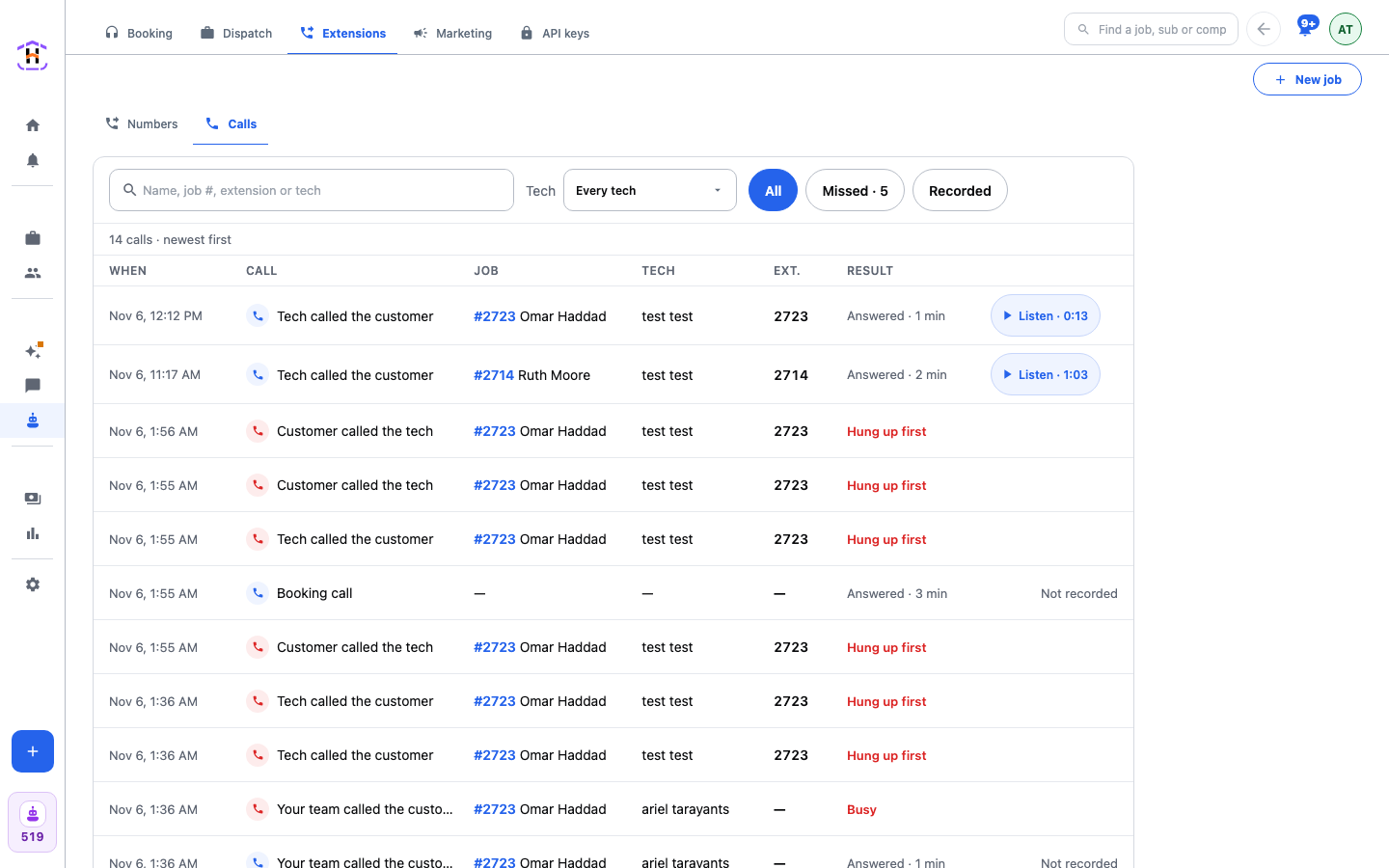
- When the call ends, find it in the list and press Listen. The length shows beside it, like Listen · 4:12. The recording opens in your phone's own player.
Find a Call Fast
- Press the Recorded chip to see only recorded calls.
- Press Missed to see calls nobody answered.
- Type a name, a job number, an extension or a tech in the search box.
- Pick a tech in the Tech list.
What the Caller and the Tech Hear
When Record calls is on, both people hear a short notice: "This call is recorded." The caller hears it before the ring. The person who answers hears it when they pick up. You cannot turn the notice off. That is on purpose.
How You Know It Worked
The call shows a Listen button with a length. The player plays both voices. The app itself never plays sound, so the player that opens is the one on your phone or browser.
What to Use a Recording For
Most owners use recordings to settle one question: what did we actually say? A customer says the tech promised a price. A tech says the customer never mentioned the second unit. Play the call. It also shows you how your people talk to customers when you are not on the job. Keep it for that. Do not play a call for someone who was not on it unless you are sure that is allowed.
Each call in the list also shows the job number, so you can open the job and see the notes and money next to the recording.
If It Fails
| What You See | What To Do |
|---|---|
| Recording ready in a minute | Wait a minute and look again. The recording is still arriving. |
| The recording was not saved | That one is gone. The next call will record. |
| Not recorded | The call happened before you turned on Record calls, or nobody answered. |
| No recorded calls. Turn on Record calls above to keep them. | Turn the switch on and make a call. |
| No Record calls switch | Set up an extension number first. The switch shows once one is on. |
Recordings are kept and never deleted for now. After a while they move to cheaper storage and still play. Read the full screen on Extension Numbers And Call Recordings.