How to Set Up an Extension Number
Result: a number your techs call to reach a customer, and your customers call back, with nobody seeing a private cell. Time: about three minutes.
What You Need First
- A phone number in your workspace. No number yet? Do Get A Number For Texts first.
- Your own phone verified, so it can ring. Press Verify my phone on step 4 of the setup, or go to Settings, then Connections.
- Your techs added on the Team page, with their phones.
You do not need to buy anything new. The number you use for texts can take calls too. It keeps working for texts while it takes calls.
Set Up an Extension Number in Six Screens
Setup picks the usual answer for you. If you are happy, press Next on every screen.
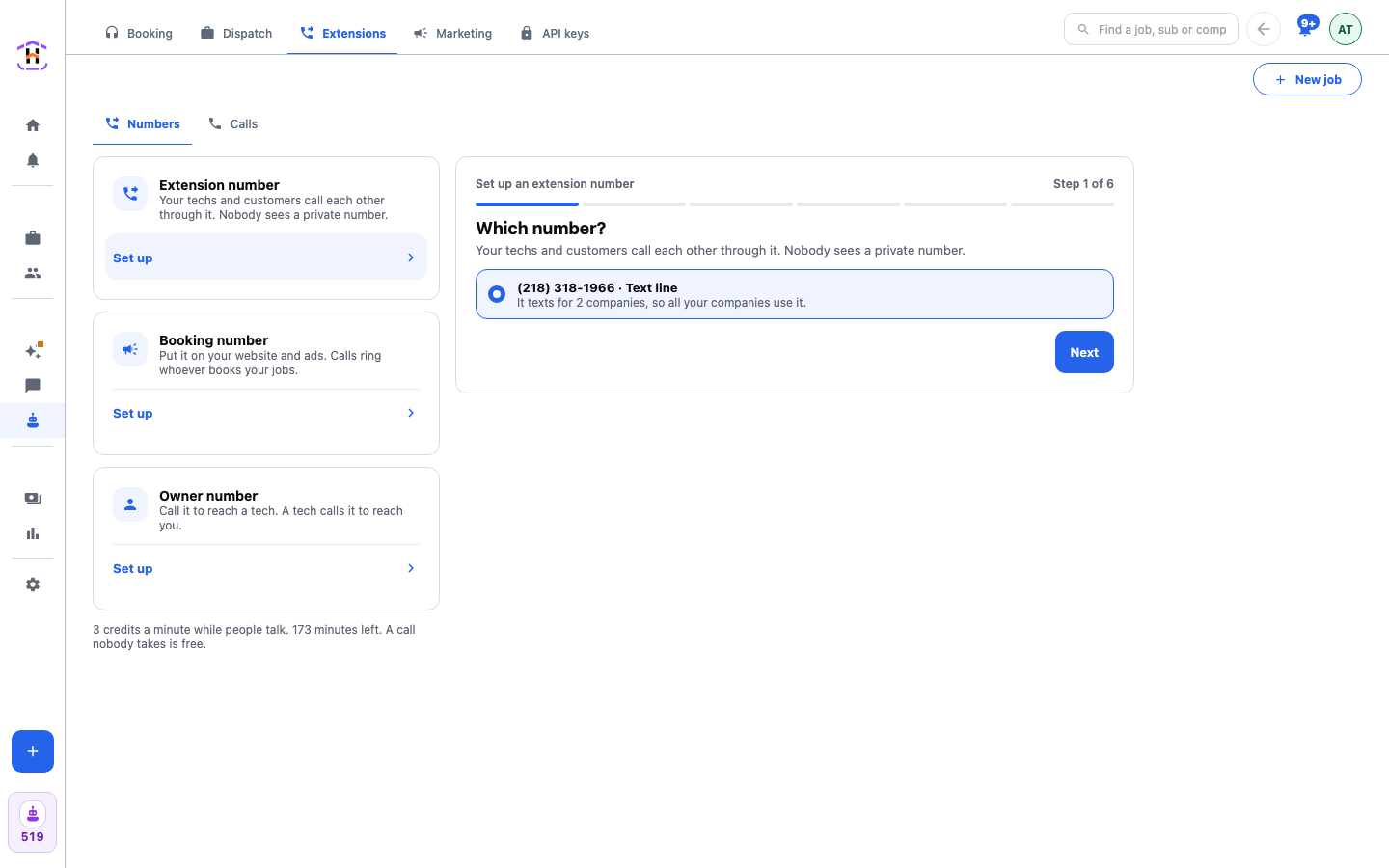
- Open Automations, then Extensions. On the Numbers tab, press Set up on the first card.
- Which number? Pick one of your numbers. With more than one company, Whose customers see it asks which company. Press Next.
- What do callers hear first? Leave Your business name picked. Press Hear what a customer hears to check it. Press Next.
- Music while they choose. Pick a tune, or No music. Press Next.
- Who answers when a caller presses 1? Tick the people whose phones should ring. The first to answer takes the call. Press Next.
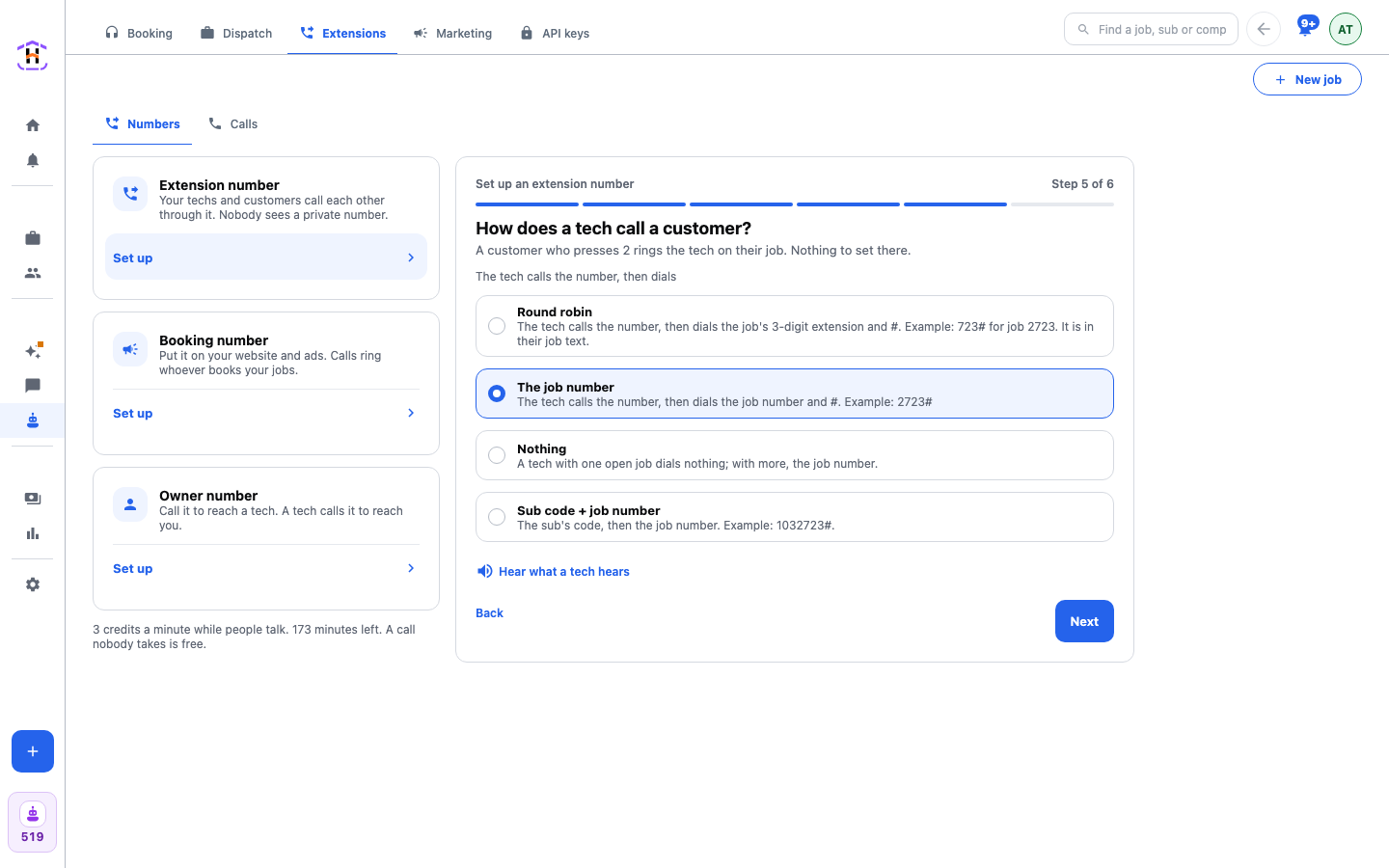
- How does a tech call a customer? Pick how techs dial: Round robin, The job number, Nothing or Sub code + job number. If unsure, keep what is picked. Press Hear what a tech hears, then Next.
- Ready to turn on. Read the summary and press Turn on.
- Open the number you just made. Under Tell your techs, press Copy this and paste it into your group chat.
- Press Call me to test. Your phone rings.
What Your Techs Do
A tech who wants to call a customer calls your number. What they dial next depends on the method you picked. With The job number, a tech on job 2723 dials 2723 and then the pound key. With Round robin, they dial the three digits in their job text, like 723, then the pound key. With Nothing, a tech who has one open job is connected right away. The customer's phone shows your business number, never the tech's cell.
When the customer calls back, they hear your greeting and your music, then choose. Pressing 1 rings the people you ticked. Pressing 2 rings the tech on their job.
How You Know It Worked
- A message says Extension number is on.
- The number appears under the Extension number card.
- When you press Call me to test, your phone rings and the message says Ringing your phone.
- Later, a call from a tech shows in the Calls tab.
If It Fails
| What You See | What To Do |
|---|---|
| You have no phone number yet. | Press Get a number. See Phone Numbers. |
| Every number you have is already in use. | Every number already has a job. Get a new one with Get a new number. |
| Nobody has verified their phone yet, so pressing 1 has nowhere to ring. | Press Verify my phone. Techs and customers can still call each other meanwhile. |
| Pick at least one person, or pressing 1 has nowhere to ring. | Go back and tick a person. |
| Verify your phone to test it. | Press Verify your phone, then test again. |
| No credits left: calls will not connect. | Press Add credits. A call costs 3 credits a started minute. |
Every control on the screen is explained on Extension Numbers And Call Recordings. To record and replay calls, do Listen To Your Recorded Calls.