How to Set Up Your Job Statuses
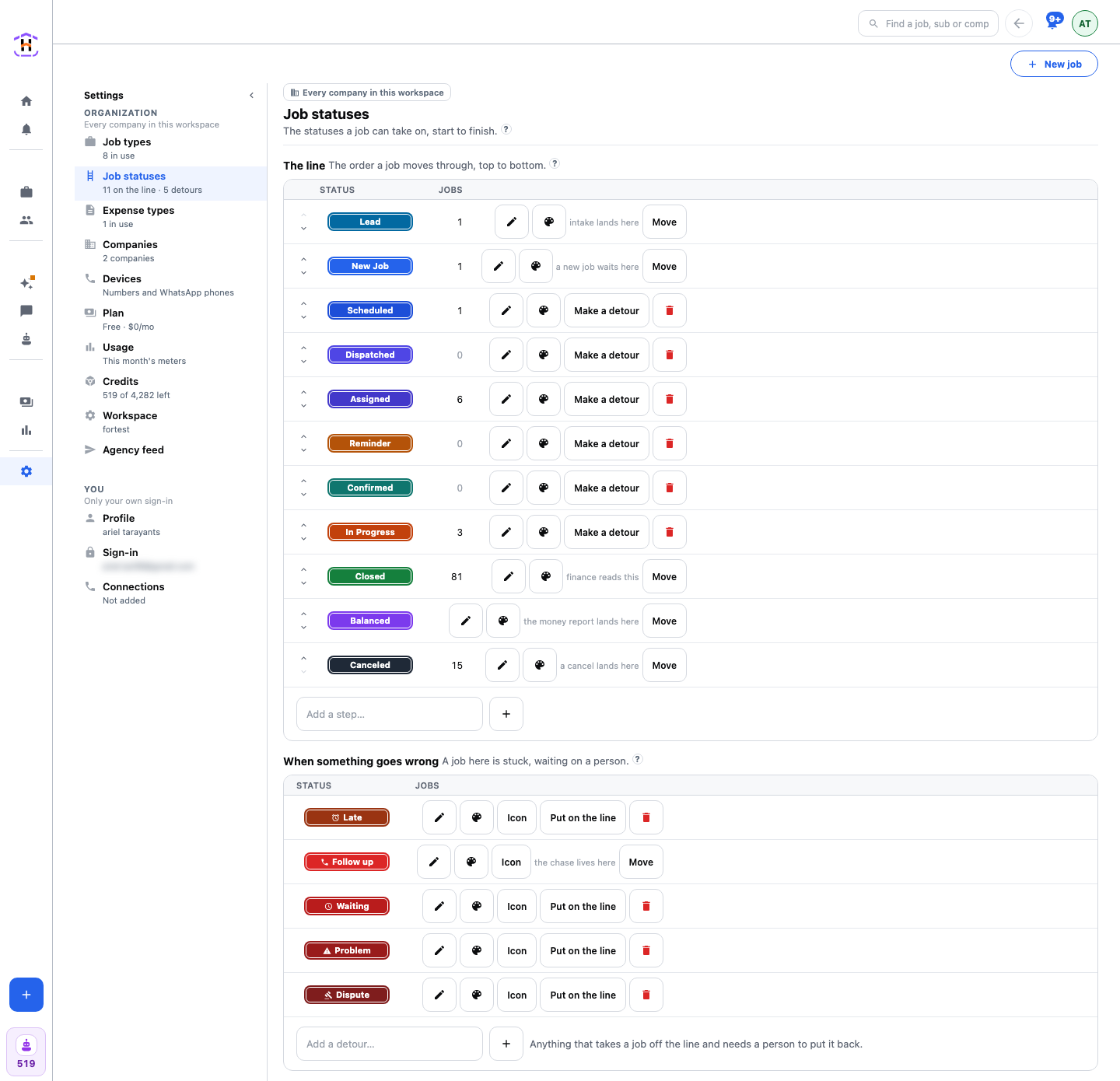
Set up job stages in Settings, Job statuses: delete what you do not use, rename what you never say, add what you miss, and keep the three markers the product needs.
Result: a job line in your own words, with the three statuses the product needs and the detours you actually use. Time: about five minutes.
What You Need First
- A HeadHoncho workspace with edit access to Settings.
- A list, on paper if you like, of the steps a job really walks in your business, from "someone called" to "I got paid".
Fewer is better. Each extra status is one more thing to press, and one more thing a report has to be read in. Keep a status only if you would act differently when a job is sitting on it.
Steps to Set Up Job Stages
- Open Settings and press Job statuses. You see two tables: The line and When something goes wrong.
- On The line, find a status you do not use. Press Delete on its row. It asks what to do with the jobs wearing it. If none do, confirm. A deleted status is retired, and you can Restore it later.
- Press Rename on any status that uses a word you never say. It asks whether to change the jobs already on it or only going forward. Pick the first for a plain rename.
- Use the arrows at the left of a row to put the line in the order a job really walks.
- Type a name in the box under the line and press Add a step for any step you miss. Press Colour to give it a colour you can spot across a table.
- Under When something goes wrong, keep the detours you use, such as Late, Follow up or Waiting. Press Add a detour for anything else. A detour is where a job waits on a person.
- Check that three statuses still carry their marker: intake lands here, a new job waits here, and finance reads this. Pressing a marked status shows what it is for and lets you move the marker to another status.
How You Know It Worked
Open Jobs and press the Status cell on any job. The menu lists your line in your order, and ends in Add a new. Your words are the words every report counts in.
If It Fails
- You cannot delete a status. It carries a required marker. Move the marker to another status first.
- A Dispatch step is greyed. It says Add the status in Job statuses. Add a status with that job in mind and pick it on the step.
- A retired word is missing. Open the folded retired section and press Restore.
Every control is explained on Job Statuses. Next, put the statuses to work with How to Set Up Automations.