How to Set Up Your First Automation
To automate job follow up, open Automations, then Dispatch. Check the line, set how jobs are offered, tell it which words mean yes, save, switch it on and send one test job.
Result: Dispatch is on, a job you assign goes to your tech, and a tech who does not answer lands in Needs you. Time: about ten minutes, plus one test job.
What You Need First
- Your job statuses set up. See How to Set Up Your Job Statuses.
- At least one sub or tech who can be reached. If he has no WhatsApp group yet, do How to Send a Job on WhatsApp first.
Steps to Automate Job Follow Up
- Open Automations and press Dispatch. If you have more than one company, pick it in the head's company dropdown.
- Look at the line. Every step should show a status in a colour. A grey step says Add the status in Job statuses. Fix that first.
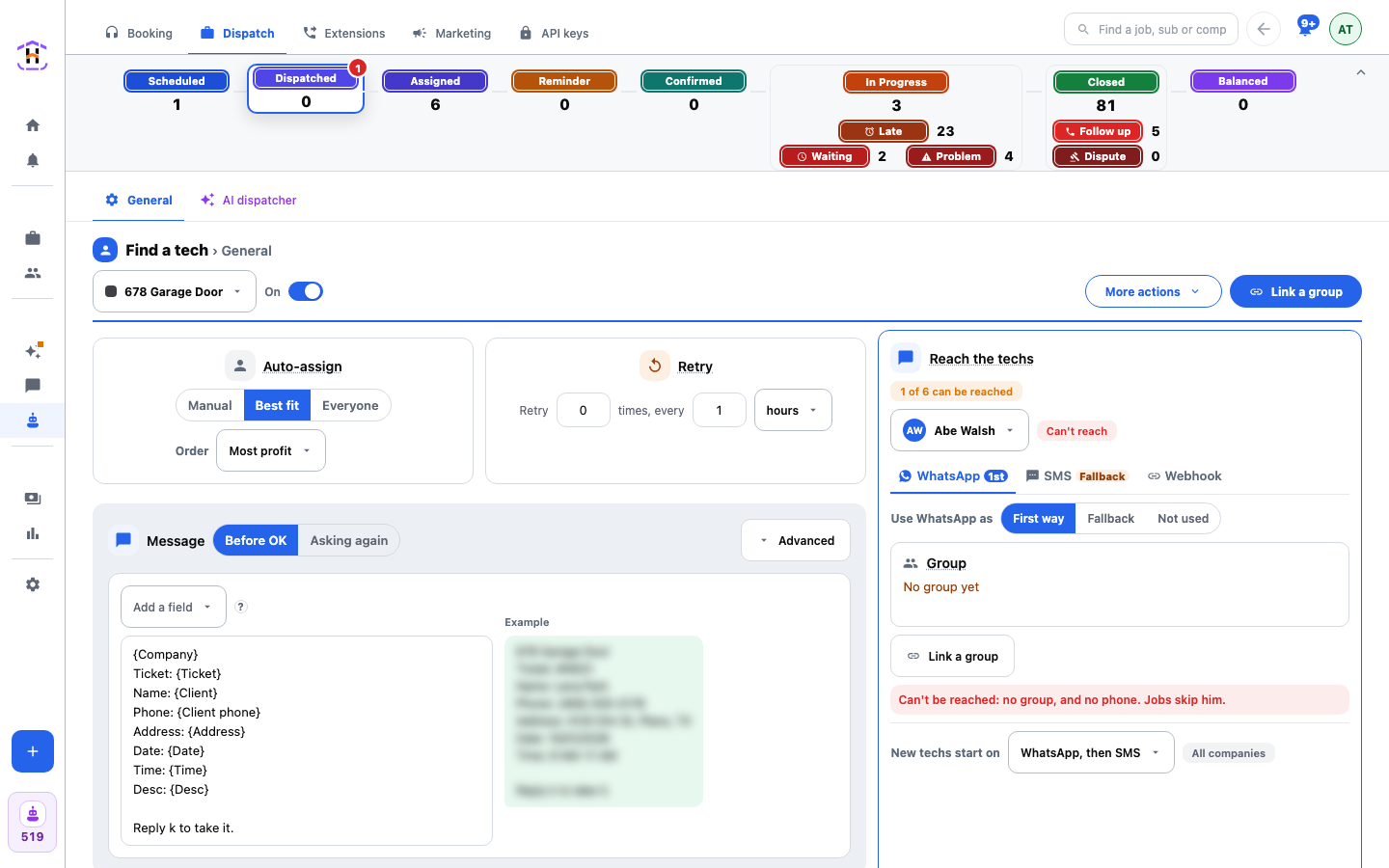
- Press Dispatched on the line. Find a tech opens under it. Under Auto-assign choose Manual for your first week. You pick the tech, and the app does the asking.
- In Reach the techs on the right, pick a tech and check the line under his tabs. You want Gets jobs by WhatsApp. The pill at the top should say every tech can be reached.
- Press Ask for OK. Check the list under Counts as yes. Add the words your techs really send, such as OK or K. Set Ask again to a number you can live with and Needs you after to the minutes you would wait.
- Press Remind both and pick the Reminder period, then who gets it under Send to.
- Press Save changes in the bar at the bottom. It lists the steps you changed.
- Switch Dispatch + statuses on at the head. Press Check setup and read what it finds.
- Make a test job, press Assign Technician on it, and pick your own number's contact or a friendly tech.
How You Know It Worked
The test tech gets the ask. When he answers with a word from Counts as yes, the job moves to Assigned and the count on that step goes up. The job's Messages tab shows what went out. Each message costs one credit.
If It Fails
- Nothing was sent. The switch is off, or the tech has no way to be reached. The verdict line says Can't be reached: no group. Jobs skip him. Link a group.
- The job shows in Needs you as No way to text. The tech has no group or number. Bind one from the task.
- A rule did something you did not want. Set Auto-assign back to Manual and press Save changes, or switch Dispatch off at the head. Move the job to the status it belongs on from the Jobs table.
Every setting is described on Dispatch.