Needs You: The Jobs Waiting on You
Needs you is the first tab of Jobs. It lists only the jobs that are stuck and only a person can move: no tech, a tech who never answered, a customer with no phone. Each row names the reason, and opening the row gives you one panel to fix it in, so you never hunt for the job.
Reading a Row
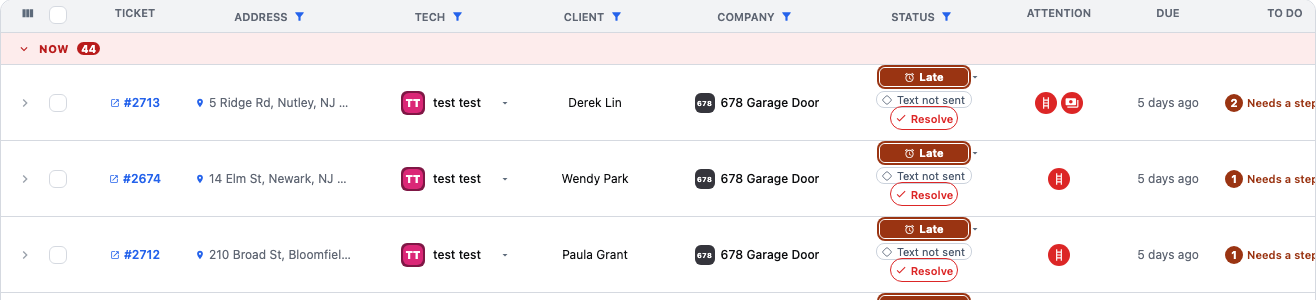
Jobs that need attention show as rows, drawn the way All jobs draws them. Two marks sit on each one. A thin rail on the left edge says how bad it is: red for danger, amber for a warning. The reason itself is named in words. A TO DO column counts the things left to do on the job and shows the first one in words. It only counts. You do the work in the panel, not in that cell.
The tab carries a count of jobs. A reason is worked out from your jobs at the moment you look, so it clears itself the moment the cause is gone. Nobody sets it and nobody has to turn it off.
The Panel Under the Row
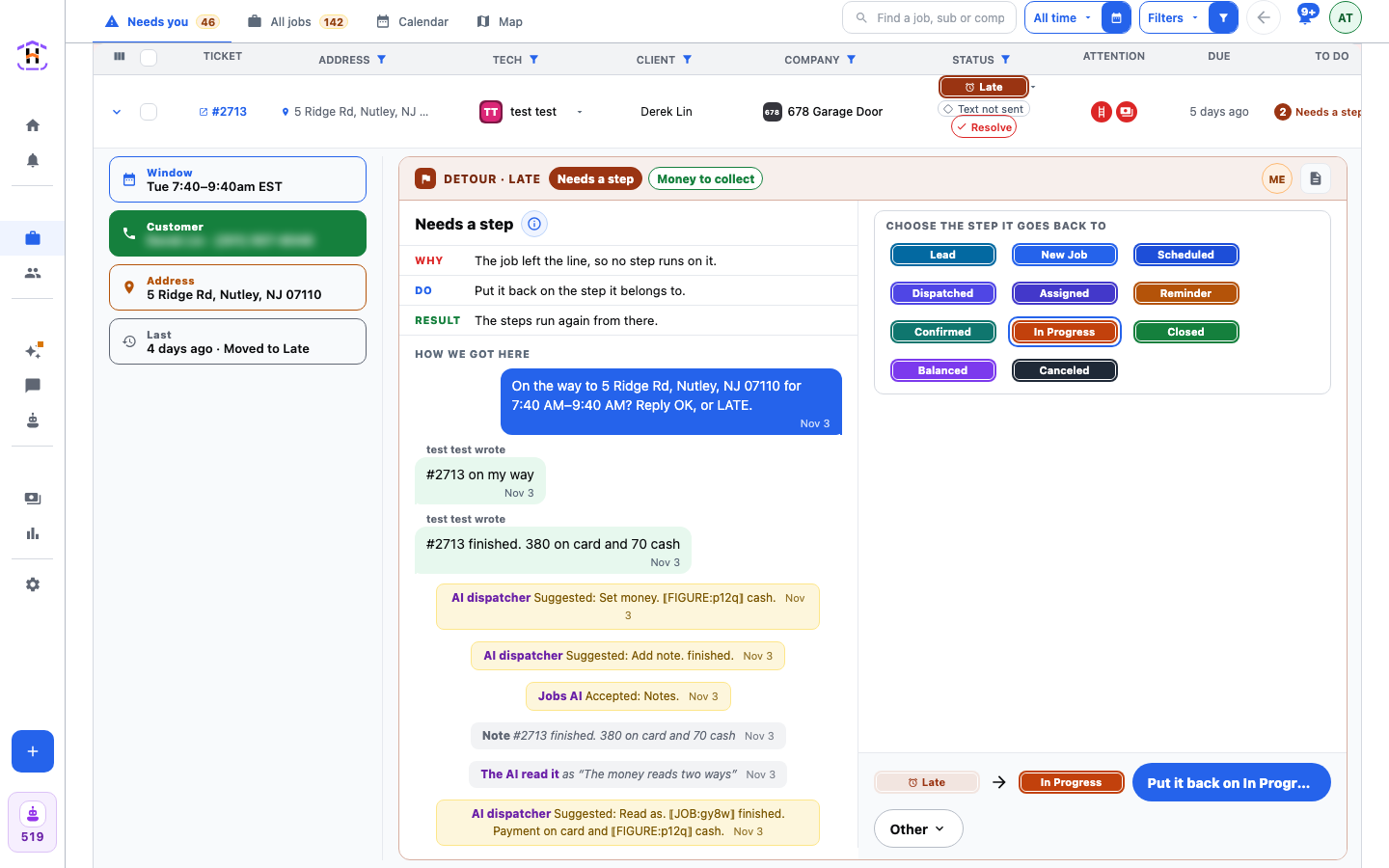
Press a row and one panel opens under it. On the left are the job's facts, one box each: Window, Customer, Address and Last, which says when the job last moved and where to. On the right is the task, one at a time. A band across the top names the kind of case, such as DETOUR · LATE. When a job has two or more reasons, a chip in that band shows each one in its own colour, such as Needs a step and Money to collect, and pressing a chip opens that task. A task you finish stays in the list, struck through, until the board reads again, so you see it was done.
Each task says three plain things: why it is on the list, what to do, and what is true afterwards. On a wide screen the task splits in two, what is wrong on the left and what to do on the right. When a task needs you to talk to someone, pressing its WhatsApp or SMS button swaps the task for the conversation. Back returns you to the task, and sending the message is the resolution.
The job leaves Needs you when nothing is left under it.
Ways to Finish a Task
Each task has a row of ways out under it.
- Do it yourself. The lit button is the verb for that task, such as Save the address, Pick a time, Add the phone, Keep it with Ravi or Take it from Ravi. Press it and the task ends.
- Hand to. Send the task to one person's phone so they do it.
- Other holds the rest, and only the ones that make sense for that task: Hand to anyone, Hand to a named person, Already handled, Already handled, all N and Never again for this job.
Already handled is for the case where you sorted it out outside the app. Never again for this job stops the job from coming back with this kind of task. Use it for a job you have decided to leave alone. When a job has several tasks, Resolve all in the head band clears them in one press.
Every Reason, in the Words on Screen
| Reason | Why it is here | What you do | Afterwards |
|---|---|---|---|
| No tech | Nobody is assigned, so nobody will go. | Pick a tech from the list. | The job is theirs and they get the ask to confirm. |
| Released, not placed | The job was released and nobody has it now. | Pick a tech from the list. | The job is theirs and they get the ask to confirm. |
| No way to text | The tech has no group or number, so no ask can go out. | Bind a group or a number for them. | The waiting asks go out on their own. |
| No answer | The tech never answered the asks. The sentence names the step: the three asks to OK the job, the reminder, or the question "On the way?". | Reach them, or give the job to another tech. | A tech has confirmed the job, or you know they are coming, or someone else is. |
| Running late | The tech is running late and the customer does not know. | Text the customer the new time. | The customer is told and the job stays booked. |
| Wants to change | The customer asked for another time. | Pick a new window, or ask them which one works. | The new time is set and both sides are told. |
| Can't reach | Texts to the customer do not go through. | Fix the number, or call them. | Texts reach them again and the paused steps go on. |
| Objected to reassignment | The tech refused to give the job up. | Keep it with them, or take it from them. | The job has one clear owner again. |
| Release not confirmed | The tech has the job and has not said they will give it up. | Ask them again to give it up. | The job is free to give to someone else. |
| Add the address | The job has no address, so nobody can go. | Add the address. | The job can be scheduled and sent. |
| Set a time | The job has no time, so it cannot be sent. | Set a time. | The job can be sent to a tech. |
| Add a phone | The customer has no phone, so nobody can reach them. | Add their phone. | Texts and calls can go out. |
| Say what the job is | The job does not say what the work is. | Write what the job is. | The tech knows what to bring. |
| Detour | The job sits on a side status, off the line. | Deal with what put it there, then resolve. | The job goes back on the line and the next step runs. |
| Needs a step | The job left the line, so no step runs on it. | Put it back on the step it belongs to. | The steps run again from there. |
Which reasons fire depends on what you have switched on. The ones about asks and replies come from the Dispatch steps. The ones about a missing address, time, phone or job type fire on a job that is waiting on you for that fact.
The Three Clock Reasons
Alert time, Due today and Date passed are not tasks. They keep a job in its band so you do not forget it, and they open the job. They have no doors and do not count in TO DO. Their colour walks from yellow, to orange when it is later today, to red when the time has passed.
Rules Worth Knowing
- No button, no reason. A reason only exists if there is something a person can do about it.
- The date range steps aside. Pressing a reason shows it across all dates, so an old stuck job is never hidden.
- One panel. There is no second screen for tasks. The job is the item and the tasks are its sub-items.
- Waiting is not an alert. A job that crosses a wait shows the next time someone looks at the board. It does not ring your phone.
To see which ad sent each job, read Track Leads to Booked Jobs.