Dispatch: How a Job Gets to Your Tech and Gets Paid
Dispatch is how a job gets from "booked" to "done and paid". It sits in Automations as a line of steps, each one a status your jobs wear: Find a tech, Ask for OK, Remind both, Their K, Start the job, Money collected and In the money report. You choose what each step does. The messages go to your techs and subs, usually on WhatsApp.
The Line
This dispatch software for contractors lives in Automations: press Dispatch. The line reads left to right: the status before Dispatched, then Find a tech to Dispatched, Ask for OK to Assigned, Remind both to Reminder, Their K to Confirmed, Start the job to In Progress, Money collected to Closed and In the money report to Balanced. The line is drawn as your statuses, with your names and colours and the count of jobs sitting in each. Press a status and the step that moves a job into it opens under the line, so pressing Dispatched opens Find a tech. Detours such as Late, Waiting and Problem hang under the status they belong to. A step whose status you deleted is greyed and says Add the status in Job statuses. A red badge on a step counts the jobs waiting on it in Needs you.
The On switch at the head turns the line on or off for the company. When it is off nothing is sent for you. Press a step and its settings open under the line. Most steps have General and Replies. Changes are drafts until you press Save changes in the bar that names what changed.
Statuses are set up under Job statuses.
Find a Tech
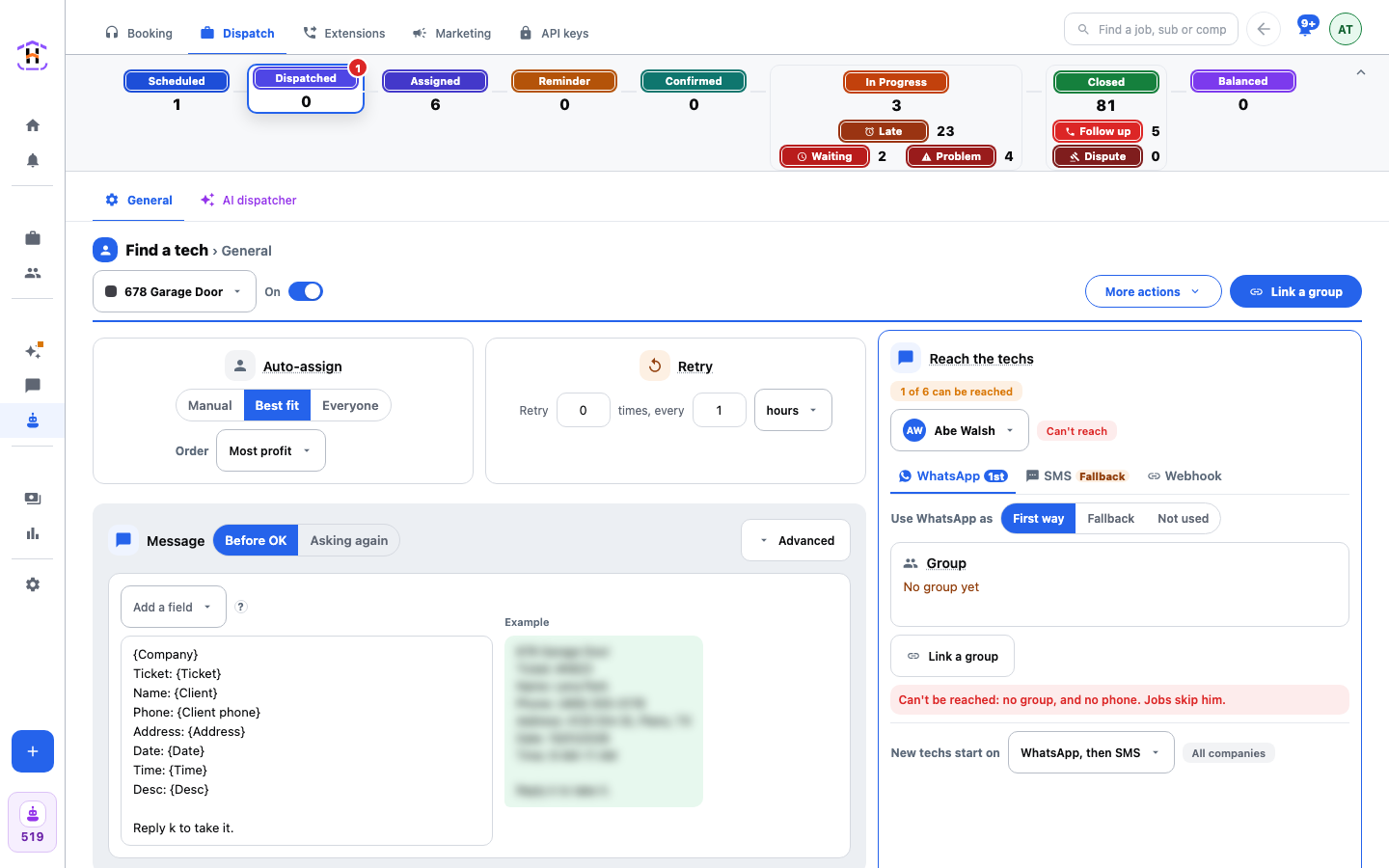
This step decides who gets the job. Auto-assign has three choices:
- Manual. You choose. Nothing is offered by itself.
- Best fit. One sub at a time, in the order you pick. The order can be Most profit, Closing rate, Ticket (highest average ticket first), Lowest cut, Least busy (fewest jobs that day first) or Closest first when it is available.
- Everyone. The offer goes to all at once and the first OK takes the job.
Retry is "Retry N times, every M". When everyone was asked and nobody took it, the job is offered again to everyone who did not say no. A tech who said no is not asked again. Zero times is off, and Retry shows as unavailable while Auto-assign is Manual. The offer message is under Auto-assign, in your words, with its versions.
Reach the Techs
On the right of Find a tech, Reach the techs sets how each person gets jobs. It holds for every Dispatch step. A pill reads N of M can be reached. Pick a tech from the dropdown, which shows how each one gets jobs now, or press Add a tech. His ways are tabs: WhatsApp, SMS and Webhook. Inside a tab, Use WhatsApp as offers First way, Fallback or Not used, and a line under it gives the verdict, such as Gets jobs by WhatsApp or Can't be reached: no group. Jobs skip him. New techs start on sets the order for people you add later.
In the WhatsApp tab you see the sub's group, a status of On, Watch only or Paused, and the buttons Link a group and Open the group. You link your own WhatsApp phone first, in Settings under Phones with Link a phone, by scanning the code in WhatsApp under Linked devices. See Phone Numbers. A walk-through is How to Send a Job on WhatsApp.
Ask for OK
When a tech is asked, he answers in the group or the chat. Counts as yes and Counts as no are lists of words you can edit, so "OK", "K" or a thumbs up can mean yes. Ask again sets how many more times to ask and how many minutes apart, then the job goes to Needs you. Needs you after sets the minutes with no answer before the job lands there. K is final is on by default: a K never reopens a job they already took. Ask which job is a switch, off by default.
Remind Both and Their K
Reminder period is the last stretch before the start. The reminder goes when it opens. Send to picks the customer, the tech or both. A K that comes inside the period moves the job straight to Confirmed, and the reminder is not sent to a tech who already said K. A customer who replies STOP gets nothing more. Texting hours keep customer texts outside those hours waiting. On Their K you set the words that count as yes, and that a no takes the tech off the job. Texting customers needs their yes first, which the Phone Numbers page covers.
Start the Job
Start picks what moves the job to In Progress: Ask "On the way?" or At the time window. With the ask, Ask the tech sets how many minutes before the job it goes out. Counts as yes moves the job to In Progress, and Counts as late sends it to Needs you. Tell the customer can text the customer when the tech says he is late.
Money and the Money Report
Money collected is the step that moves a job to Closed. In the money report moves a closed job to Balanced when it is in a closed balance. Both run always, as rules of the line, not choices. How the cut and the balance work is on Finance, Splits and Payouts.
Late
Late is a detour, not a step on the line, but it has a window of its own. It asks the sub for an update with the ticket and the address, asks again as many times as you set and as many minutes apart, then lands in Needs you. Each detour's window has Shown under, which picks the step it is drawn beneath. It only changes the drawing.
Saving and Credits
Every step saves whole. A refusal stays on the step it was about, in the server's own words, and your draft is kept. Each message sent, to a tech or a customer, by WhatsApp, SMS or webhook, costs one credit. See Plans and Usage. The page does not show credits next to the steps.
Once jobs reach techs reliably, the next question is which source sent them. That is the subject of Where Home-Service Jobs Actually Come From.