How to Send a Job on WhatsApp
To send a job to a subcontractor on WhatsApp, link your phone, link his group, assign the job. The ticket goes to the group and his OK makes the job his.
Result: a job goes to one sub's WhatsApp group, he answers OK, and the job is his. Time: about ten minutes the first time, one press after that.
What You Need First
- A phone with WhatsApp that you can hold, for scanning one code.
- A WhatsApp group with your sub in it, or a chat you can pick.
- Dispatch switched on. See How to Set Up Automations.
Steps to Send a Job to a Subcontractor on WhatsApp
- Open Settings and press Phones, then Link a phone. A code appears. On the phone, open WhatsApp, then Linked devices, then Link a device, and scan it. Wait until it says it is linked and how many groups it found. Details are on Phone Numbers.
- Open Team, press Subs, then Add sub. Fill in the name and phone. When he is saved you are offered to link his group.
- Pick his group from the phone's list. You can search it. If you have more than one company, pick the company first.
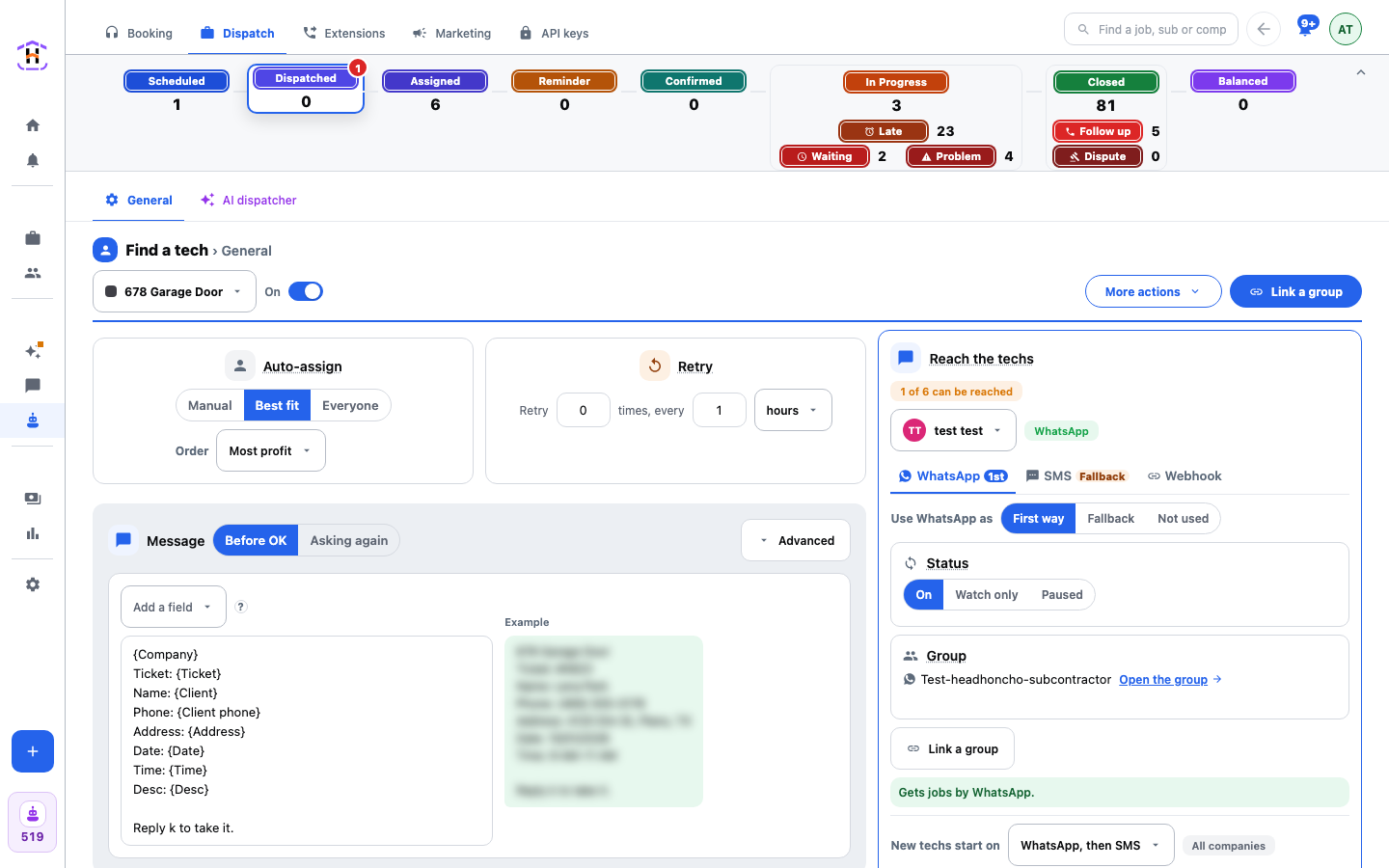
- Open Automations, Dispatch, Find a tech. In Reach the techs pick him. The line under his tabs should read Gets jobs by WhatsApp.
- Open the job on Jobs. In the Tech/Sub cell press Assign Technician and pick him.
- Ask him to answer in the group with a word from your Counts as yes list.
How You Know It Worked
The ticket shows in the group. The job's Messages tab shows it too. When he answers OK the job moves to Assigned and the Tech/Sub cell fills with his colour. Each message uses one credit.
If It Fails
- The verdict says Can't be reached: no group. Jobs skip him. Press Link a group in the WhatsApp tab.
- The group status is Paused or Watch only. Set it to On.
- The job lands in Needs you as No way to text. Open the task and bind a group or number for him.
- The code will not link. The service may be busy. Press Try again in a minute.
Each setting is explained on Dispatch.